

 myCSUSM





Hours
Monday - Thursday: 8am - 6pm
Friday: 8am - 5pm
(unless otherwise posted)
Location
Administrative Building 4200 & 4300
Fax
(760) 750-3445
How to Access MyDSS Faculty Portal
Below is a step by step guide on how to access the MyDSS Faculty Portal.
Step 1: Navigate to the MyDSS faculty portal.
Step 2: Sign in with your CSUSM username and password. Complete the login process as you normally would for other campus platforms.
Step 3: After logging in, you will land on the faculty access/FERPA policy information page. Once you have read the statement, select "Continue to View Student Accommodations".
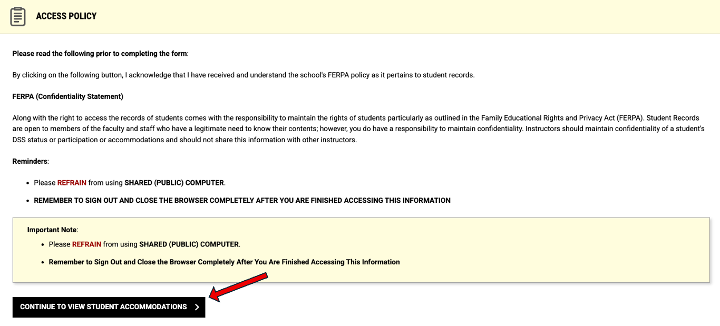
Step 4: You will now be able to view a list of students who have requested accommodation, in your ocurses. Please note that students who are registered with DSS, but choose not to request accommodations for your course, will not appear in the MyDSS faculty portal.
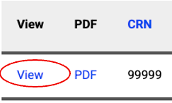
Step 5: Review the student(s) accommodation letter by clicking "View" next to the student's name you wish to view.
View a video tutorial below: