
 myCSUSM







Activity Completion
Contents
- Set Up (Individual Item)
- Bulk Edit
- Change Default
- Activity Completion Report
- Student View
- Disable Activity Completion
Set Up (Individual Item)
- From your course homepage, go to the module/week that contains the item you want to track.
- Scroll down to the item and click the pencil icon underneath the name.
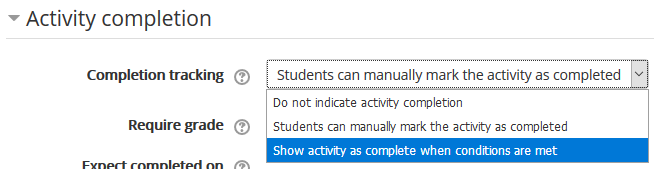
- Scroll down to the Activity Completion section.
- By default the completion tracking for every item is set to “Student can manually mark the activity as completed” which means the student must check the box next to the item on the course homepage for the item to be marked as complete. The other two options are “do not indicate activity completion” which is best if you do not want this item to show up in the Activity Completion Report, and “show activity as complete when conditions are met.” If you are here, most likely you want the last option.
- Set the conditions that must be met. The conditions available depend upon the item, some have more options than others. Resources only have one option: “Require view.” Activities have more options, although certain activities like Turnitin have limited options.
- Assignment:
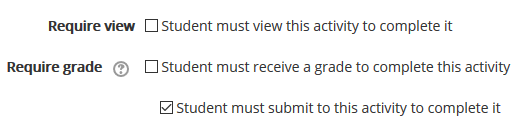
- Forum:
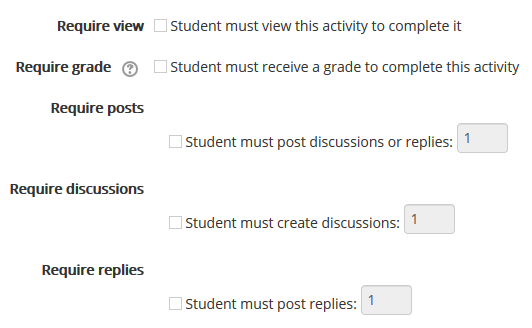
- Quiz:
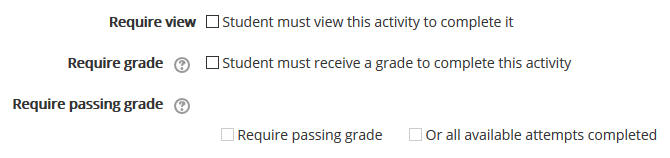
- Turnitin:

- Finally, “Expect completed on” is the date that the item should be completed by. Items with an expected completed on date in the past will have a red background in the Activity Completion Report. If a completion date is not important, leave the Enable box unchecked.

- Don’t forget to Save!
Bulk Edit
You have the ability to edit the activty completion settings for multiple items at once.
- From your course homepage click the gear icon in the upper right to open the Course Administration and then click Course Completion.
- Go to the “Bulk edit activity completion” tab.

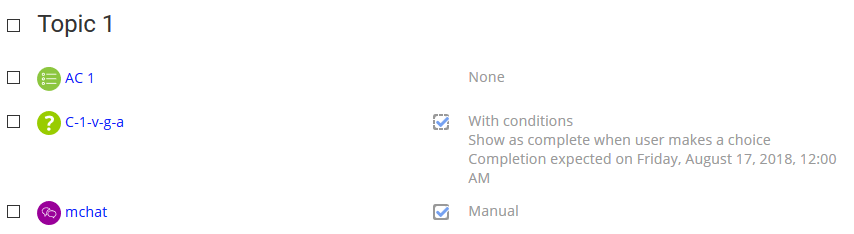
- This will show you all the activities and resources in your course. The right hand column will list the current activity completion settings for each item.
-
Select the items you wish to bulk edit. Note: Since the available conditions vary based on the item type (Resources, Assignments, Quizzes, Forums, etc.), only select items of the same type. If you select items of different types, you will not see the full range of activity completion conditions available when bulk editing.
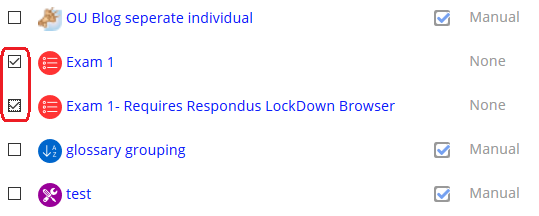
- Click Edit either at the top or the bottom of the list.

- Set the activity completion settings for the selected items. See #5 in the Setup section above for more details.
-
Save changes.
Change Default
The default completion tracking for every item is set to “Student can manually mark the activity as completed” which means the student must check the box next to the item on the course homepage for the item to be marked as complete. You have the ability to change this default for each item type (Resources, Assignments, Quizzes, Forums, etc.) so that the next time you add a particular item type to your course, the activity completion is already set to the desired options.
- From your course homepage click the gear icon in the upper right to open the Course Administration and then click Course Completion.
- Go to the “Default activity completion” tab.

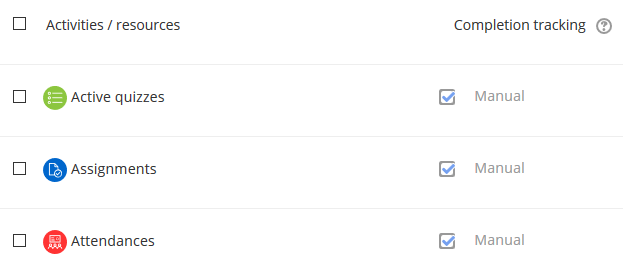
- This will show you all the activity and resource types available. The right hand column will list the current default completion settings for each item type.
-
Select the item type you wish to bulk edit. Note: Since the available conditions vary based on the item type (Resources, Assignments, Quizzes, Forums, etc.), only select one item type at a time. If you select different types, you will not see the full range of activity completion conditions available.

- Click Edit either at the top or the bottom of the list.
- Set the activity completion settings for the selected item type. See #5 in the Setup section above for more details.
-
Save changes.
Activity Completion Report
From your course homepage click the gear icon in the upper right to open the Course Administration and click on Reports, then Activity completion.
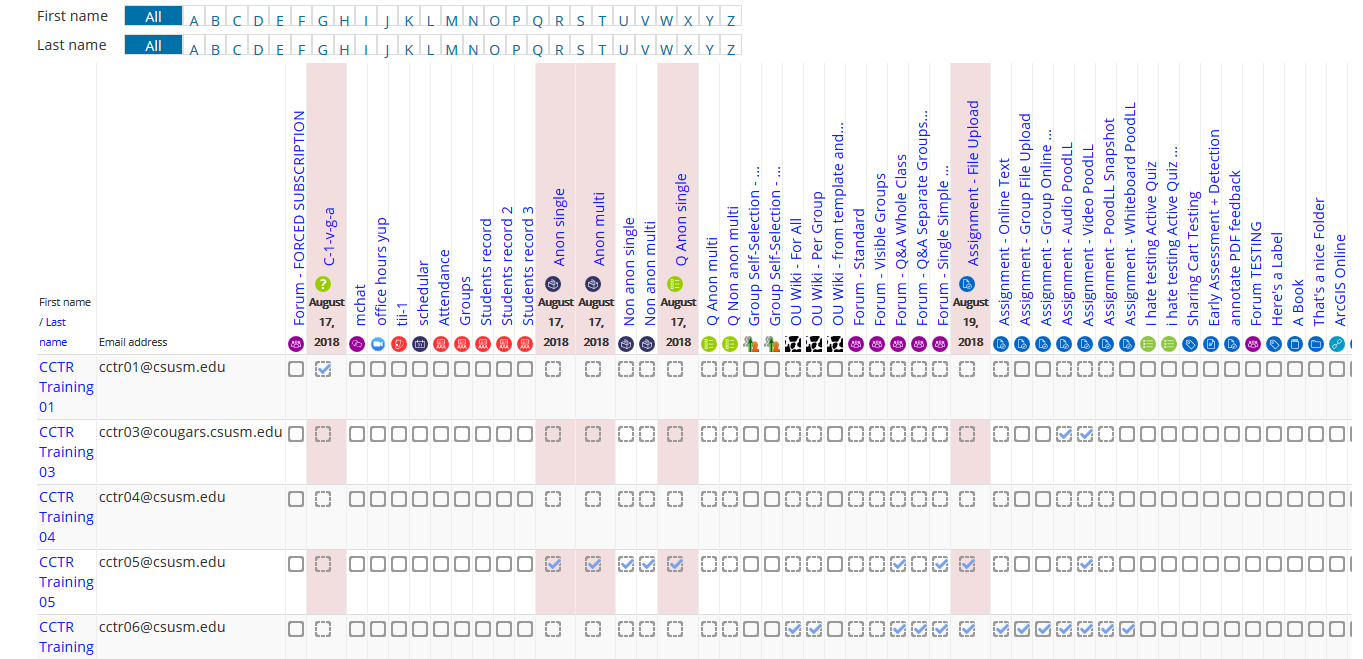
The items tracked are listed across the top, ordered based on their order in the course. The students are listed in the first column. You can sort the column alphabetically by first name or last name.
Dotted lines means the item is set to “show activity as complete when conditions are met.” Solid lines means the item is set to “student can manually mark the activity as completed.”
Red means the expected completed on date has passed.
Hover over a checked box to see when the student completed that item.
Student View
When a student completes an item, a check appears in the box to the right of the item.

On the Course Dashboard within a course each student sees their Progress percentage. The percentage comes from the number of items the student individually has completed divided by the total number of items with Activity Completion enabled in the course.
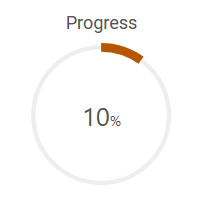
Outside of the course, on their My Courses page, students see the same Progress percentage below the name of the course.
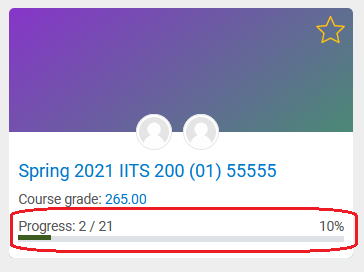
If you want students to see a more dynamic display, we recommend you use the Completion Progress block as well.
Disable Activity Completion
If you do not wish to use Activity Completion in your course and would like to hide the check boxes and percentage (on the Dashboard) from students, you will want to disable it at the course settings level.
- From your course homepage click the gear icon in the upper right to open the Course Administration and click on Edit Settings in your course Administration block.
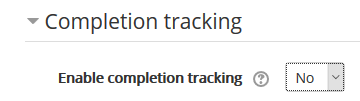
- Scroll down to the Completion Tracking section and set "Enable completion tracking" to No.
- Click "Save and display" at the bottom of the page.