

 myCSUSM







Getting OneDrive Video Links Into CC
What it is
If you have video files in OneDrive that are the standard mp4 files from, say, Zoom, you can share these in Cougar Courses. Note that currently there is no way to prevent viewers from downloading video files from OneDrive links.
How to do it
- Log into your OneDrive account.
- Navigate to the folder containing the video file(s) you wish to share.
- Click on the Share button – a sharing window opens.

- Click on Anyone with the link to open permissions for all to view.
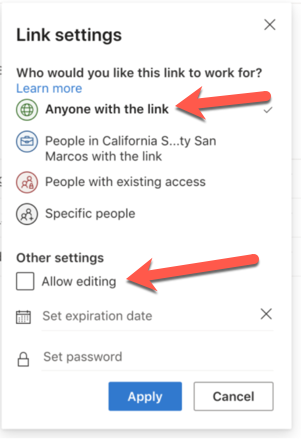
- Click to uncheck Allow Editing. If you wish to set an expiration date for the link, enter it in Set expiration date. If you are concerned about the security of your video, you can add a password and then communicate that to the students.
- Click on Apply. This opens a second window.
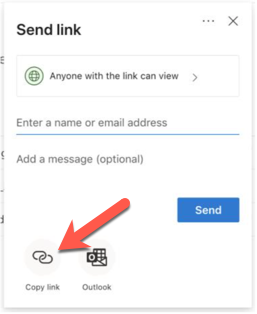
- Click on Copy Link to copy the link to your clipboard. One more little window opens.
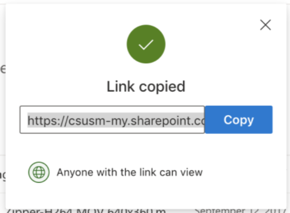
- Paste the link into CC where needed.
Note that there is no way to prevent viewers from downloading video from OneDrive. If this is a concern, consider using Microsoft Stream.