

 myCSUSM







Getting Zoom Links Into Cougar Courses
-
Log into your Zoom web portal
-
Click on the Login to Host a Meeting button in the upper right corner.
-
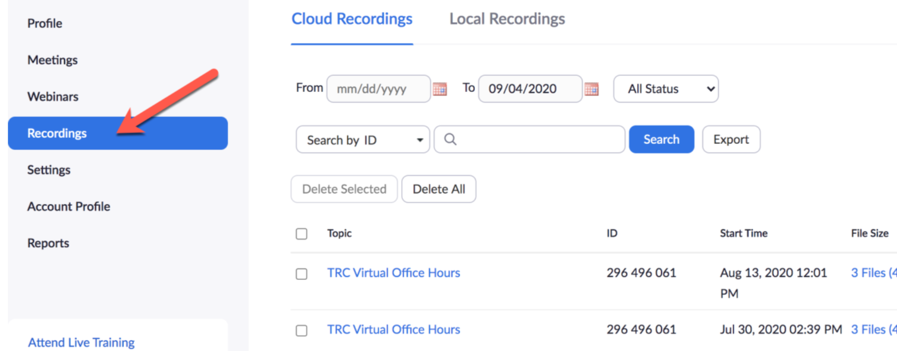
Click on the Recordings tab on the left.
-
Use the search tools at the top to find the recording you want to share.
-
Click the Share button to the right of the recording you want to share.
-
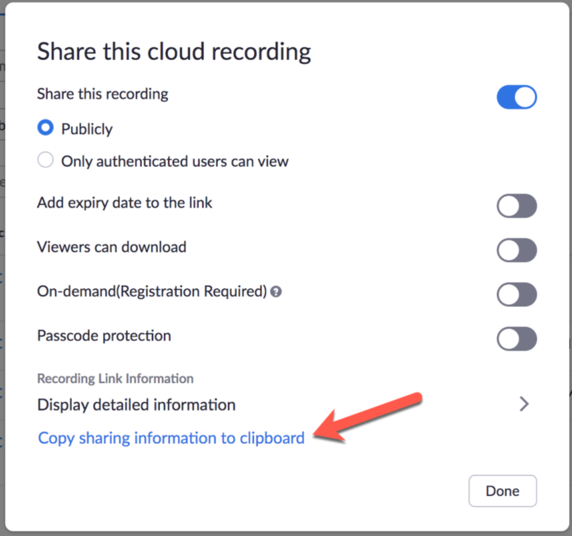
This opens the Share this cloud recording window. There are some choices:
-
Publicly vs. Only authenticated users. If you choose Auth Users, only people logged into a CSUSM Zoom account will be able to view.
-
Add expiry date to the link – lets you expire the link. Viewers can download – you usually do not want folks downloading your videos.
-
On-demand registration – requires folks to register to view. Not generally useful for classes.
-
Passcode protection – this will require viewers to enter a password you set to access.
-
-
Click on Copy sharing information to clipboard. The sharing link will be in the clipboard so you can paste into Cougar Courses.
-
Refer to Cougar Courses (Canvas) Support to see how to paste this into a URL Resource in CC