

 myCSUSM







Frequently Asked Questions
Enrollment and Course Access
- When I try to login to Cougar Courses is says incorrect username or password.
Visit the STH Username and Password FAQs page
Important password security note: We will never ask for your password. Please don't provide it in an email. If you receive an email asking for your password, forward the email to abuse@csusm.edu and delete the message right away.
- When I try to login to Cougar Courses it says I am not enrolled, but I am enrolled
in classes. What do I do?
Does the page look like this?
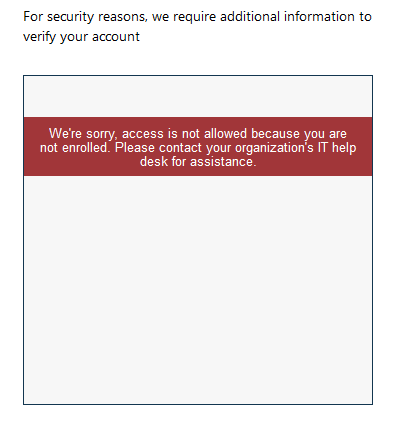
If so, it does not mean you are not enrolled in classes, it means you are not enrolled in Duo our multi-factor authentication system. Visit the Student Technology Helpdesk's help page on Duo for more information.
- When I try to login I get a "Bad Request - Request Too Long..." error message.Completely clear your browser's cookies and cache and try again. Or try using a different browser (we recommend Firefox or Chrome). If you are in a rush and do not have time to clear cookies and cache or download a new browser, try using your browser's incognito or private window.
- When I try to login it says I do not have an account in Moodle.This happens when you are not enrolled in any courses. If you have just registered for courses, wait 24 hours and try logging in again.
- When I try to login it says I am not authorized to access Moodle.This happens if you first logged in to Cougar Courses before you had a CSUSM email. Email cchelp@csusm.edu with your name and CSUSM username and we can fix your account.
- When I try to login I get a "SAML2 exception: Responder" error message.
First, reset your CSUSM password: https://www.csusm.edu/iits/iitsforyou/password/index.html
Make sure the reset worked by using your new password to login to something other than Cougar Courses (MyCSUSM, your student email, etc.). If the reset did work, completely clear your cookies and cache and try to login to CC again.
- I don't see my courses in Cougar Courses and the term will start soon/just started.
Where are they?
- It can take up to 24 hours from the time you officially add a course in MyCSUSM until you are added to the Cougar Courses container.
- I just added a course in MyCSUSM, but I don't see it in Cougar Courses yet. Can you
give me access?It can take up to 24 hours for your add to be processed by the registrar and your name to be added to the course roster in Cougar Courses. If you require immediate access to the course materials, contact your instructor for access.
- I have cleared my financial hold. How do I get access to my course(s) again in Cougar
Courses?You should be automatically re-enrolled within 24 hours, but probably much sooner. If you require immediate access to the course materials, contact your instructor for access.
- Why am I still seeing last semester's classes on CC? How can I get rid of these?
Courses remain visible to students until at least 2 weeks after the term has ended (the exception is Winter Intersession courses, as they are technically a part of the Spring term). At that point, courses for that term are hidden from students. However, instructors can choose to make their course(s) visible again after this. If you still see a course more than two weeks after the term has ended, the only way to remove is to contact the instructor and request they hide the course or enable a course end date.
- How do I access a course from a previous semester?
Basics and Personalization
- How can I add a picture to my profile?
- How can I change my name in Cougar Courses?
Is this a preferred name change?
- Process a preferred name change through the Office of the Registrar: https://www.csusm.edu/enroll/services/name_change/preferred_name.html
Is this a legal name change?
- Process a legal name change through the Office of the Registrar: https://www.csusm.edu/enroll/services/name_change/index.html
- Process a preferred name change through the Office of the Registrar: https://www.csusm.edu/enroll/services/name_change/preferred_name.html
Course Activities and Resources
- Why can't I view the lectures/videos the instructor posted?
- I can't open the PDFs my instructor posted in the course.
- Can you tell me if my assignment, quiz, Turnitin, etc was submitted?
- Why can't I see my Assignment/Turnitin/Quiz/Forum grade?
- It says my file is too large to upload to my assignment. What can I do?
The maximum size for assignment submissions is 20MB, but your instructor can limit it to smaller sizes if they choose.
For files that are larger than that and cannot be reduced (like audio or video files) you will want to upload to a separate site and then submit the link to the file in Cougar Courses. For video files you can upload to Youtube or Stream. For PowerPoint/Word/Excel/etc you can upload to OneDrive or Google Drive. - Why don't I see the "submit paper" link for my Turnitin assignment?
You will not see a "submit paper" link if:
- The Start Date is in the future. Once the Start Date is reached, you will see be able to submit.
- The Due Date has passed and your instructor has not allowed late submissions. Contact your instructor.
- You have already submitted and your instructor has not allowed resubmissions. Contact your instructor.
- I'm having trouble submitting my Turnitin assignment. What's wrong?
- Try a different browser. We recommend Firefox or Chrome (make sure it is up to date).
- Make sure your document file name has the .doc or .docx extension at the end or is saved as a .pdf (especially important if you are using a Mac)
- Your document must have more than 20 words of text. Scanned PDFs or pictures of documents won't work.
- Don't use any special characters (/ & % -) in the file name or submission title
- Configure your browser to allow pop-up windows.
- Check to make sure Turnitin isn't down. To check, visit the Turnitin Status page: https://turnitin.statuspage.io/
- If you have already submitted and the Due Date has passed you will cannot resubmit. Resubmissions, if enabled, are only allowed before the Due Date. Contact your instructor.
- Why can't I post/reply in a forum?
There are a number of reasons why you might not be able to post or reply in a forum:
- The cut-off date has passed. If the cut-off date has passed you should see a message displayed below the prompt that says "The cut-off date for posting to this forum is reached so you can no longer post to it."
- Your instructor is using the Q&A forum type. The Q&A forum type requires the instructor to post first, which students then reply to. Click on the subject of your instructor's post and then click Reply in the lower right. If you do not see Reply, contact your instructor. If you do not see their post to reply to, contact your instructor.
- The forum is set to groups, but you are not in a group. If your instructor set the forum to use groups, if you are not in a group you will not be able to post. If this is the case you should see the message "You are not able to create a discussion because you are not a member of any group." Contact your instructor who will need to either place you in a group or remove the group setting.
- When I try to post in a forum it gives me the message "Error writing to database."
What do I do?
This can happen for two reasons:
- Do you have any emojis or emoticons in your text? Remove them and you should be able to post.
- Did you copy and paste your text from Word? If so, instead of just pasting your text in the main area, use the Paste from Word feature in the text editor toolbar. Review our help guide on how to paste from word.
- When I try to add a file to my forum post in the pop-up window there is a button that
says "Refresh the lists of missing and unused files" and won't let me post. What is
wrong?
It sounds like you are not adding the file correctly. There are two correct ways to add a file to a forum post:
- Where can I download Respondus LockDown Browser?
You will download Respondus LockDown Browser from a quiz/exam that requires it. Use a regular browser (Chrome or Firefox) and go to the quiz/exam that requires LockDown Browser. Click the link "Download LockDown Browser." If you do not see a "Download LockDown Browser" link it means your instructor has not enabled LockDown Browser for that quiz/exam. Contact your instructor to let them know.
Here is our help guide on downloading and using LockDown Browser.
- When try to login to Respondus LockDown Browser it says I do not have an account in
Canvas. What do I do?You should not launch Respondus LockDown Browser directly from your computer. And if you launch properly, it will not ask you to login to LockDown Browser. The correct process for using LockDown Browser is to use a regular browser (Chrome or Firefox), go to the quiz/exam that requires LockDown Browser, and then click the “Launch LockDown Browser” button. If you do not see a "Launch LockDown Browser" button it means your instructor has not enabled LockDown Browser for that quiz/exam. Contact your instructor to let them know.
Here is our help guide on using LockDown Browser. - My Respondus LockDown Browser is not working. What can I do?
Please see our help guide on troubleshooting Respondus LockDown Browser and Monitor for the steps you should take.
- My computer shut down/internet cut out during my quiz. Can you open it back up for
me?
First, if your time has not run out then you can resume your quiz attempt. Go to the quiz and click the "continue last attempt" button.
If time has expired or you lost a considerable amount of time, you will need to contact your instructor. Only your instructor can enable extra attempts. We recommend contacting your instructor as soon as possible.