

 myCSUSM






Teams User Guide
Joining with your CSUSM account from your computer or mobile device
- Download the Teams desktop app to your computer or the phone app for free on iOS and Android
- Open the Teams app (desktop or mobile)
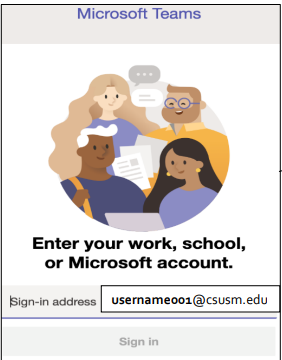
- Sign in with your CSUSM email address (username001@csusm.edu) and your password.
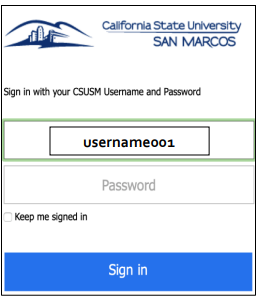
- In the next screen, sign in again with your CSUSM username (username001) and your password
Then, click on the Join Webinar link at the time of the webinar. If your app doesn’t automatically open, you will see a screen asking you how to join your Teams meeting. Select “Open your Teams app.”
FAQ
- I am unable to log into Teams with my CSUSM account! Can I still join?
- If you are unable to sign in, email teamsssupport@csusm.edu for help.
- IMPORTANT NOTE! You can still join the webinar as a guest! If you don’t succeed in signing in with your CSUSM credentials, simply follow this guide.
Teams Support
Issues or questions? Email teamssupport@csusm.edu
Need more info on Teams? Visit our Teams Guide