
 myCSUSM






Android Email Set-up
Step 1: Install Outlook
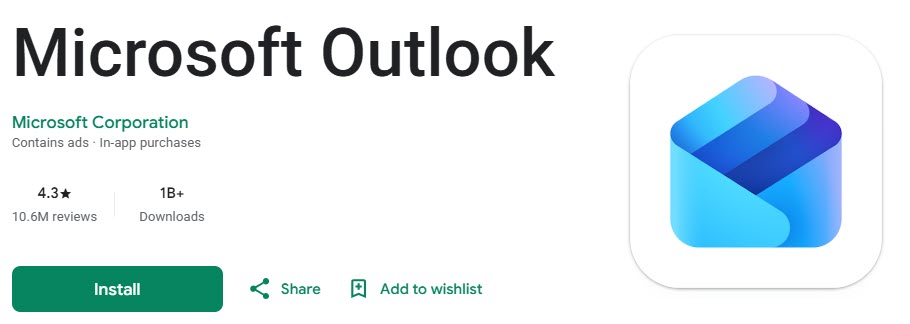
- Install Microsoft Outlook from the Play Store
- Open the Play Store on your phone or tablet.
- Search for Microsoft Outlook.
- Tap Install.
Step 2: Open Outlook
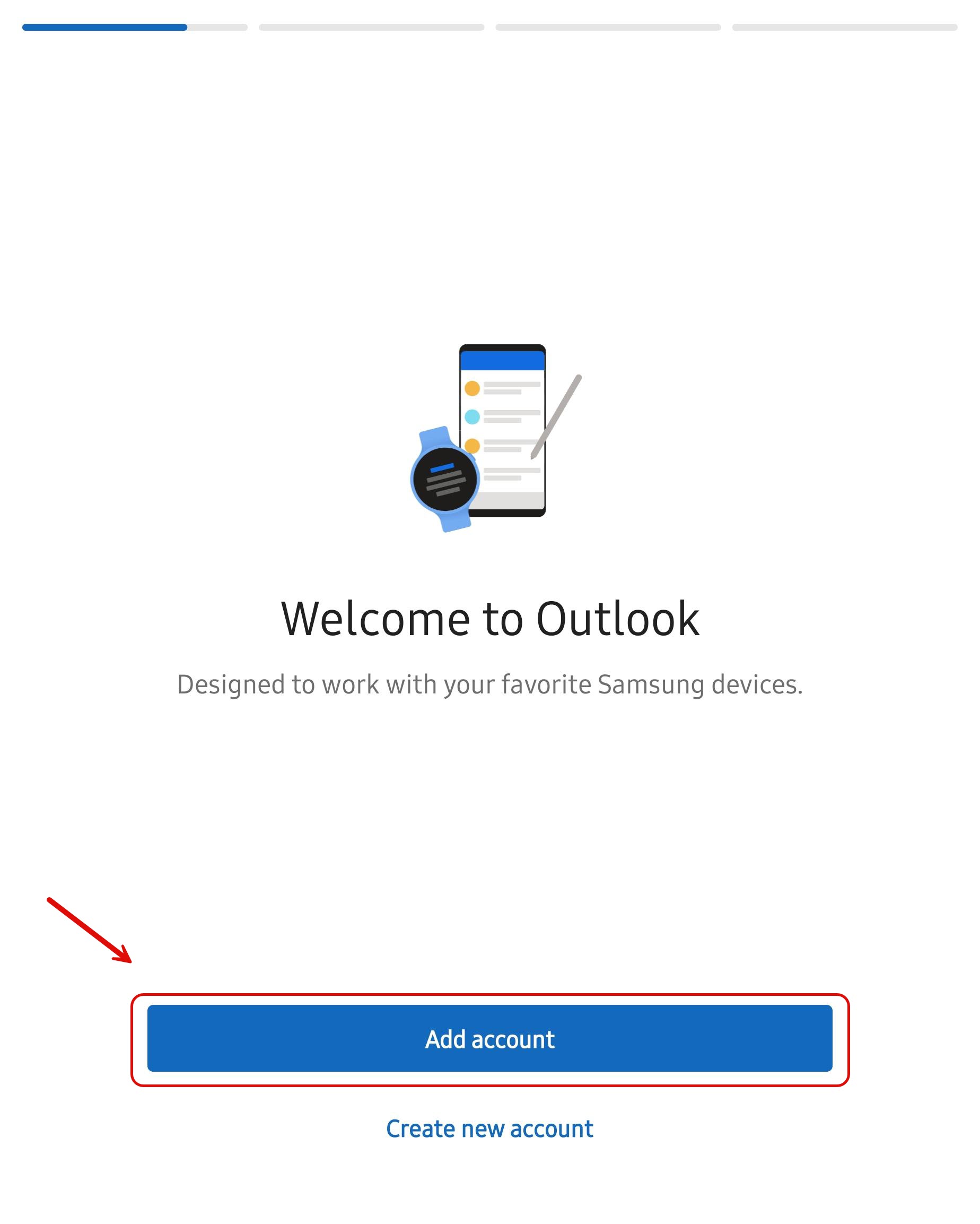
- Launch the Outlook app.
- Tap Add Account.
Step 3: Enter Your CSUSM Email Address
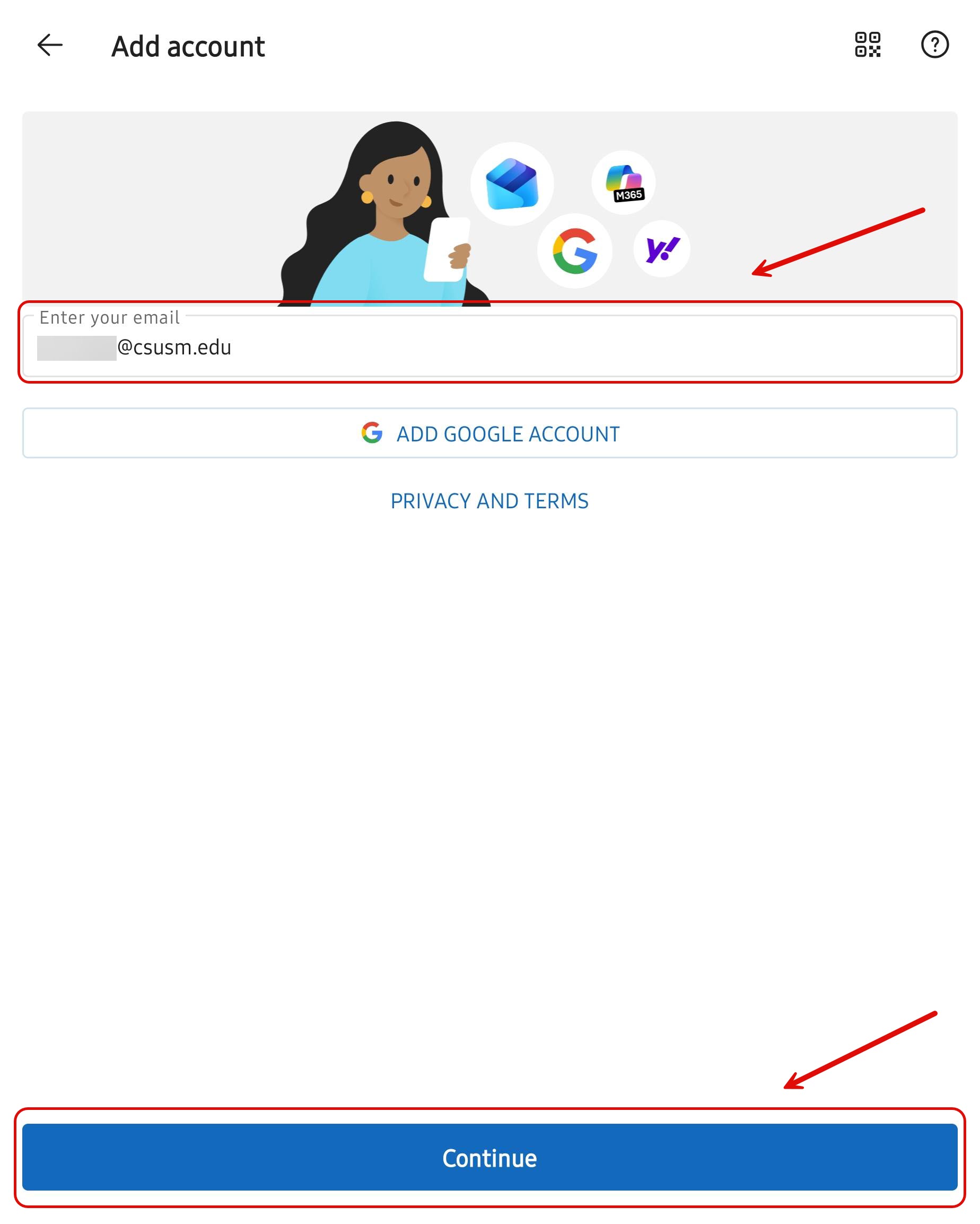
- Type your CSUSM email address (for example,
username@csusm.edu). - Tap Continue or Add Account.
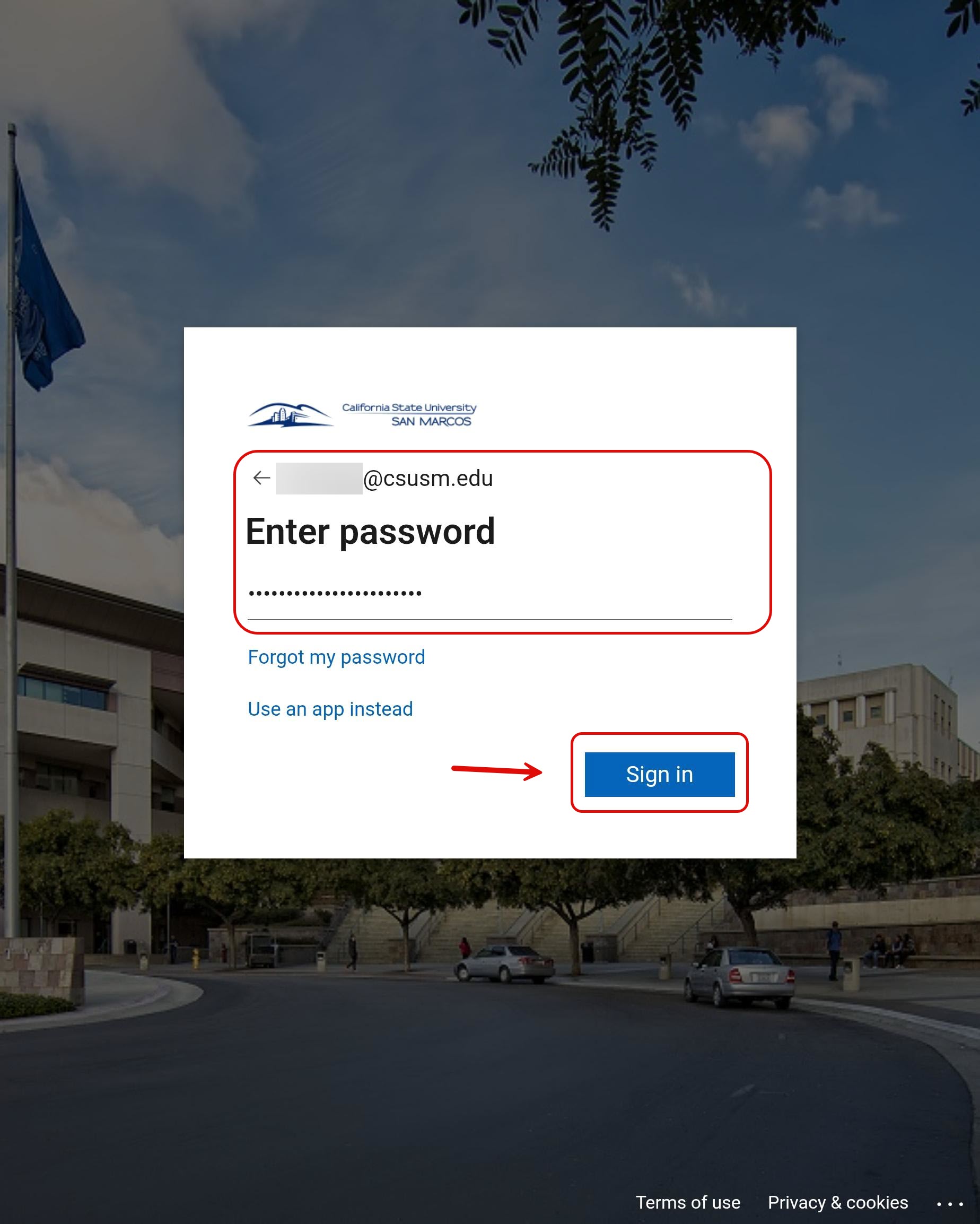
Step 5: Complete Multi-Factor Authentication
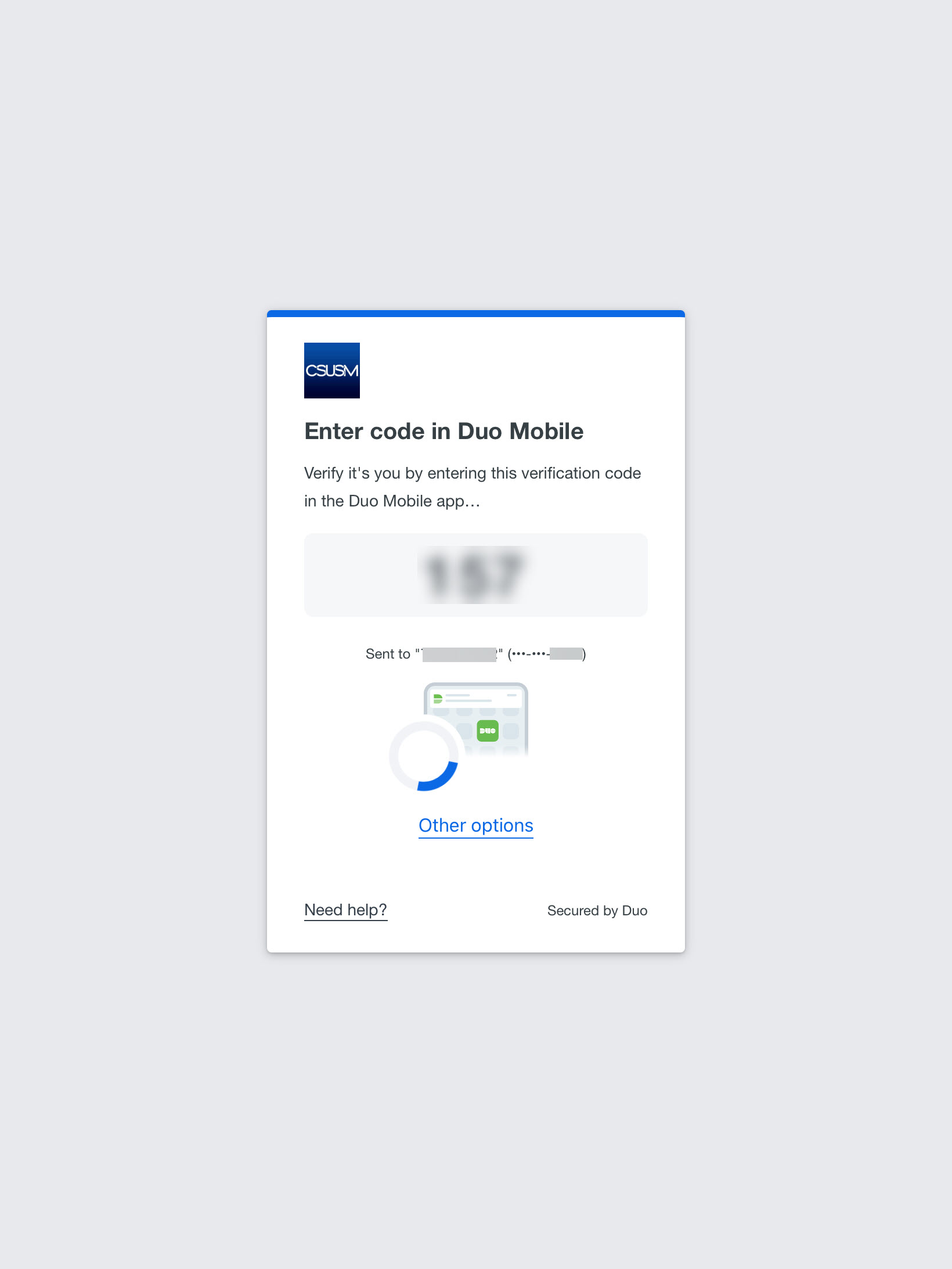
- If required, approve your sign-in using your configured authentication method.
- Follow any additional prompts to verify your identity.
- Please press and hold on the DUO notification to fill in the numbers.
- Leaving the Outlook App will interrupt the sign in process start it over.
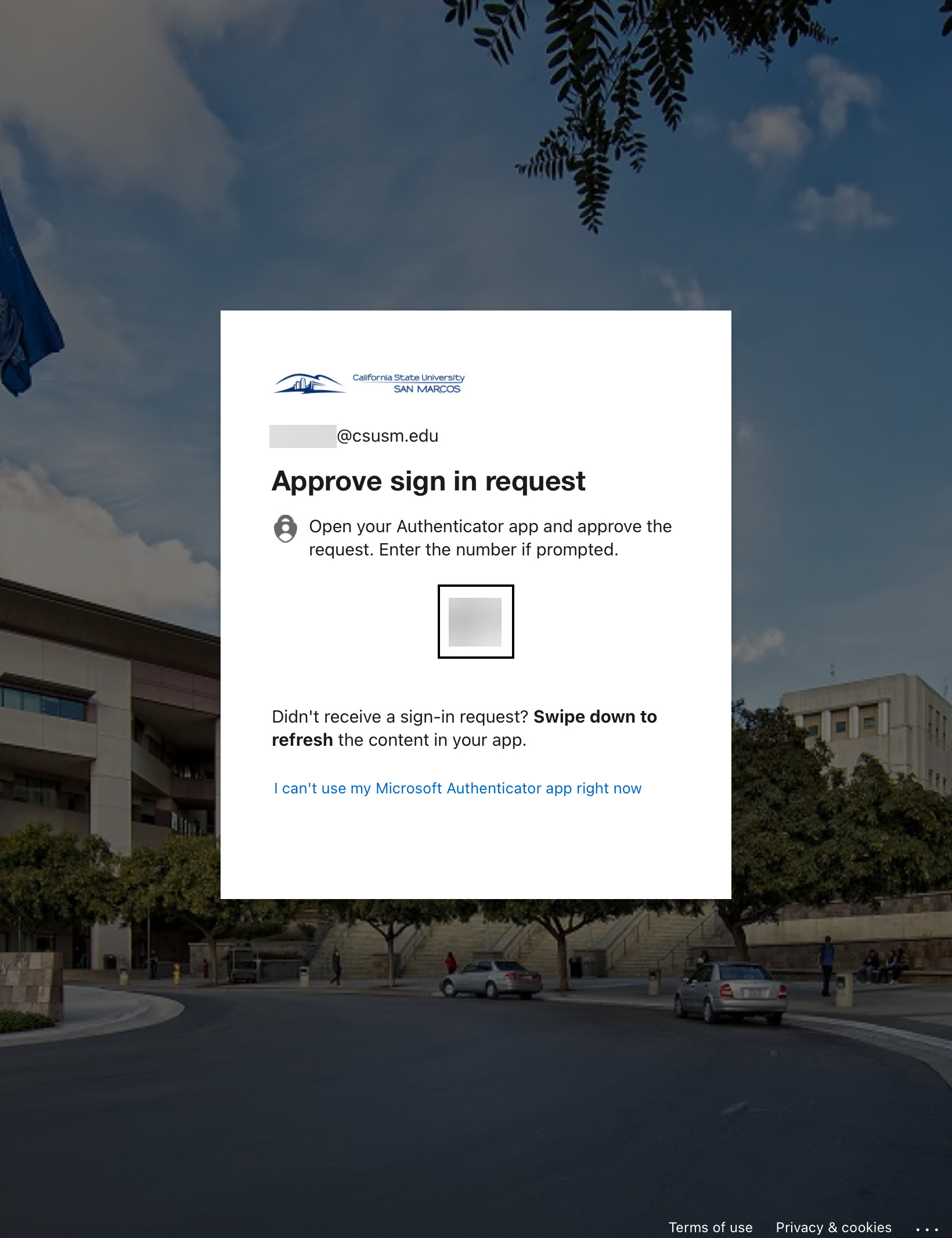
- If you have Microsoft Authenticator set up, you may also have to approve the prompt.
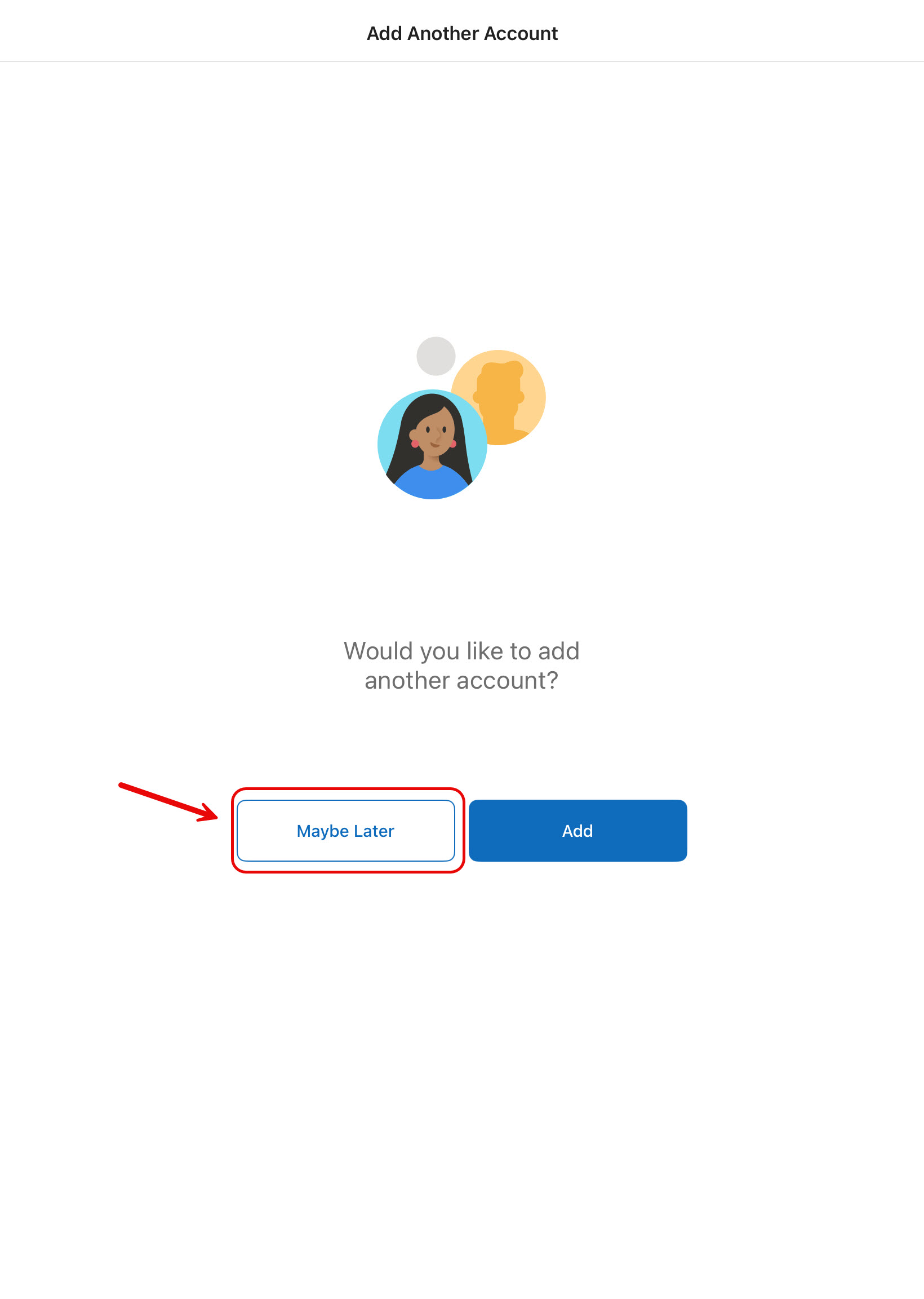
- Once finished with Authentication, select "Maybe Later" to continue.
Step 6: Grant Permissions
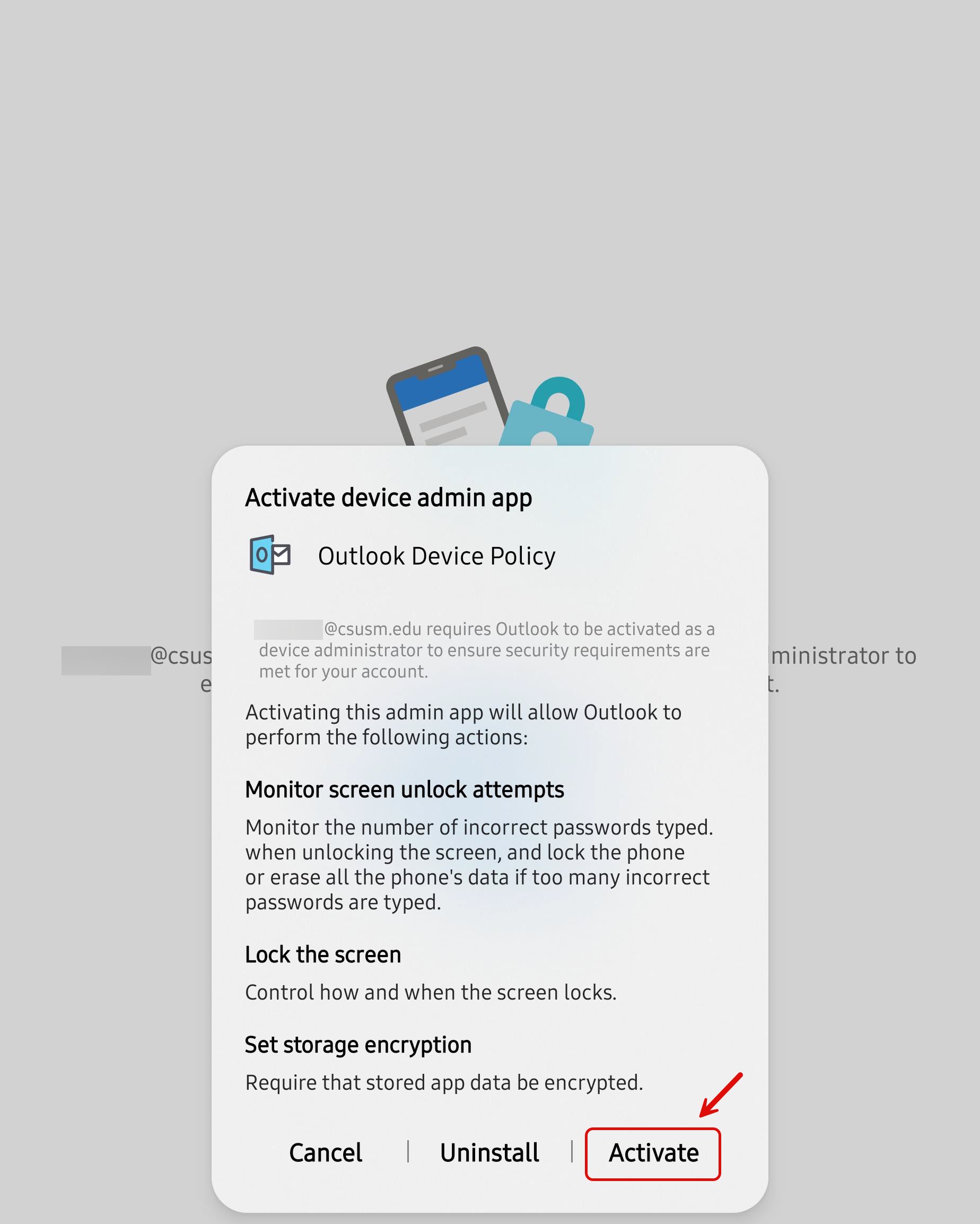
- Tap "Activate" when Activate device administer prompt appears.
What you're seeing is called the Outlook Device Policy, a standard Microsoft security
feature that is built into the Outlook app itself.
This prompt is not something CSUSM has configured or turned on, it is triggered automatically
by Microsoft when you connect any work or school email account to the Outlook app
on a personal Android device.
CSUSM cannot see your personal data. Your text messages, photos, browser history,
personal emails, contacts, and passwords are completely private and inaccessible to
us. The only thing managed is the CSUSM account in the Outlook app.
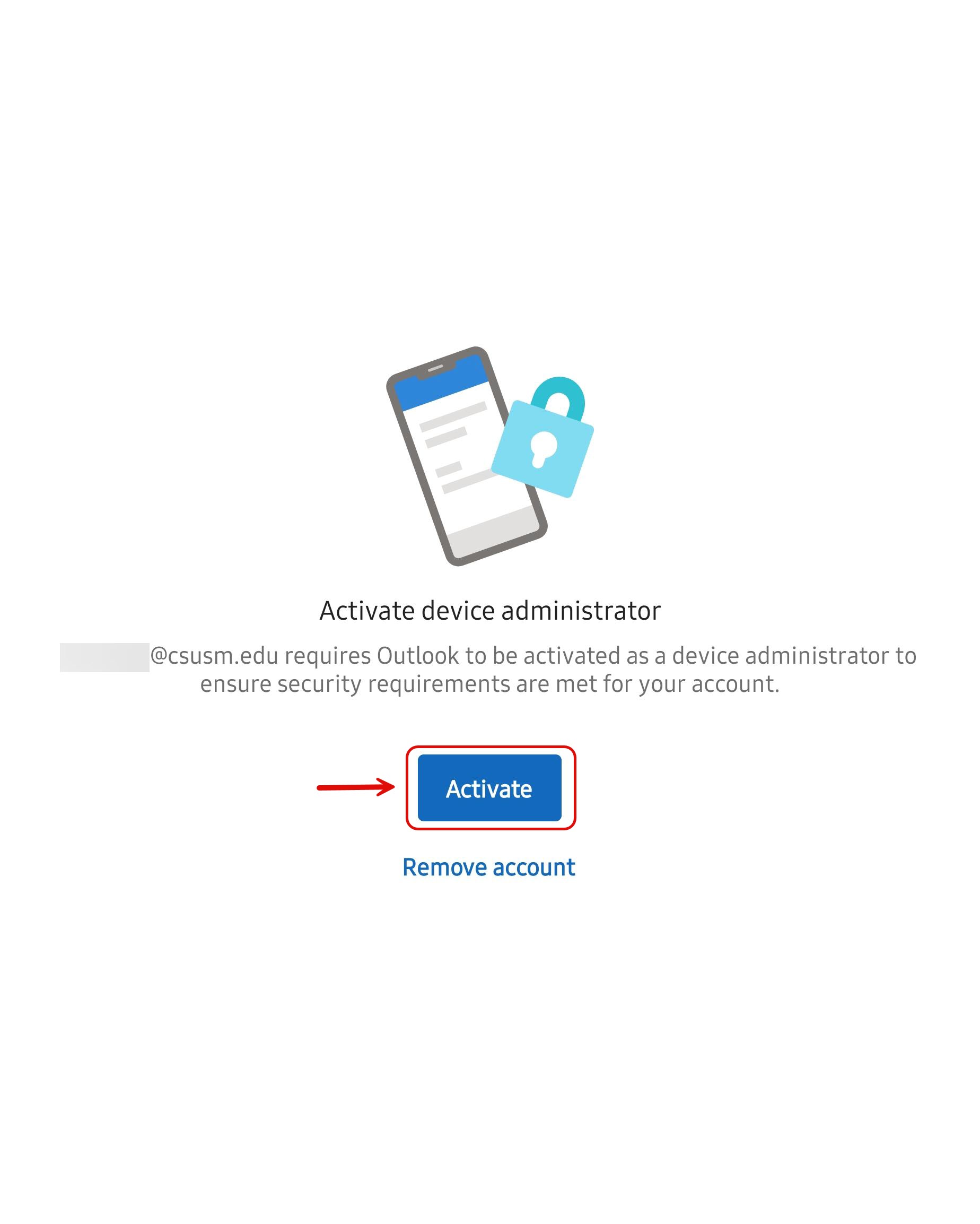
- Tap "Activate" when the Outlook Device Policy prompt appears.
This may be device specific.
We also want to clarify that the term "device admin" can be misleading. Despite the
name, this does not mean that CSUSM or anyone else gains administrative access or
control over your personal device. It simply allows the Outlook app to enforce a few
basic security settings, such as requiring a screen lock and encrypting app data,
to keep your account safe.
It's also worth noting that iPhone users go through a similar process. Instead of
the Device Admin prompt, iOS handles these same security requirements quietly in the
background through app-level policies.
Personal data on the device is never accessed or visible to CSUSM.
- Outlook may ask for permission to access your:
- Contacts
- Calendar
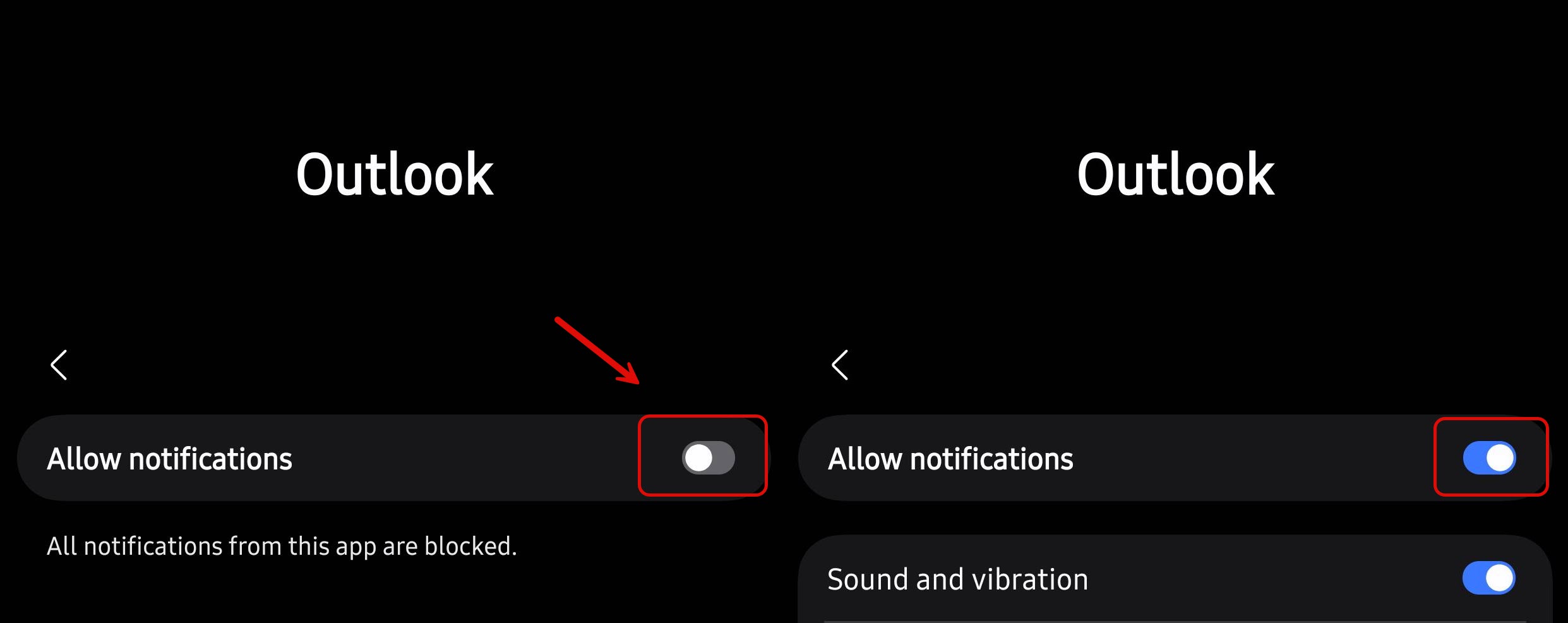
- Notifications
- Select your preferred options and tap Allow.
- You may need to go into you App's Settings and manually allow notifications if you did not get prompted.
Step 7: Start Using Your Email
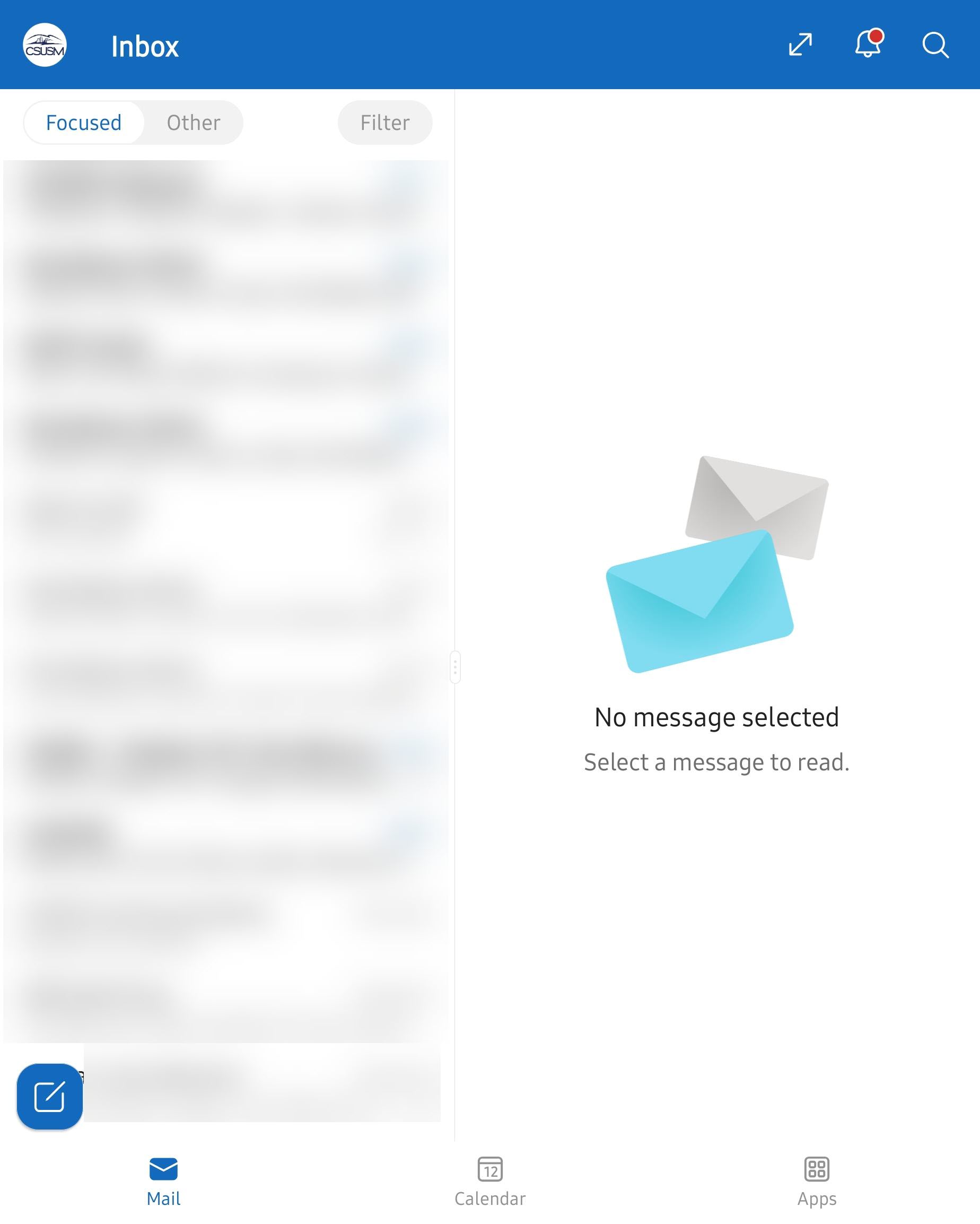
Your CSUSM email account will now appear in Outlook. You can access:
- Calendar
- Contacts
- Apps