

 myCSUSM






MFA Provider Transition - Microsoft Authenticator
Continuing from our Week 1 communication regarding the importance of MFA, we are happy to announce that we will be transitioning to Microsoft as our MFA provider
Microsoft MFA Transition
We have been using Duo Mobile as our MFA provider since 2020. As part of our ongoing efforts to enhance security and streamline the user experience, we will transition to Microsoft Authenticator as our sole MFA provider.
Why are we doing this?
Moving to Microsoft Authenticator will allow us to integrate Microsoft’s security capabilities while maintaining a familiar sign-in experience. Users will continue to verify their identities through push notifications and other secure methods.
Additionally, Microsoft Authenticator supports password-less sign-in through mobile devices. By reducing reliance on passwords, this authentication method lessens the effectiveness of phishing or password theft while providing a faster and more convenient sign-in experience.
What do users need to do?
Users should begin enrolling with and activating Microsoft Authenticator on their university accounts. More information on the transition timeline will be coming soon.
How do I enroll in Microsoft Authenticator?
Microsoft Security Sign-In
Click on the link above and sign in with your campus email address
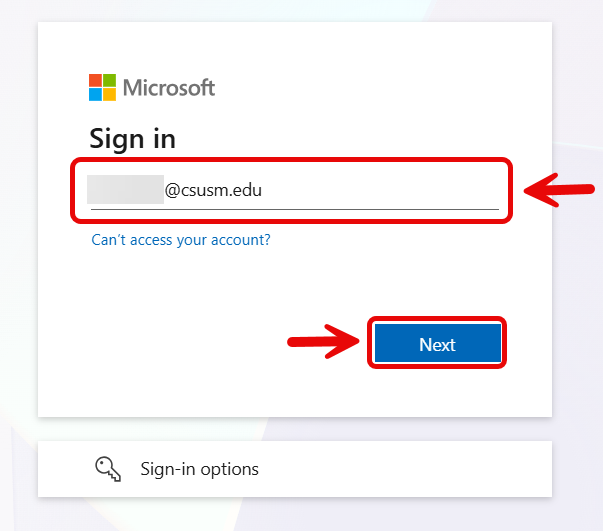
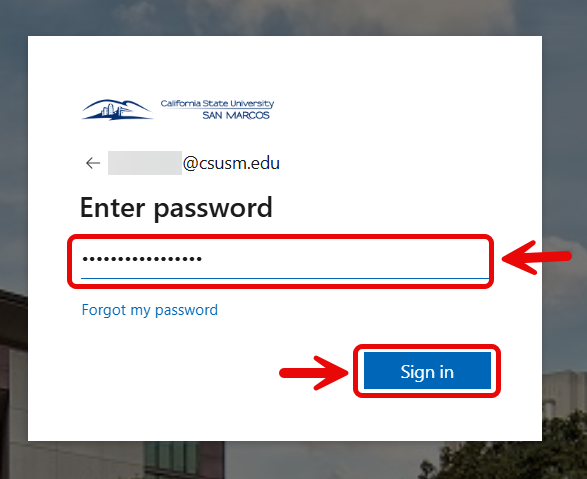
Enter your email address password as shown below.
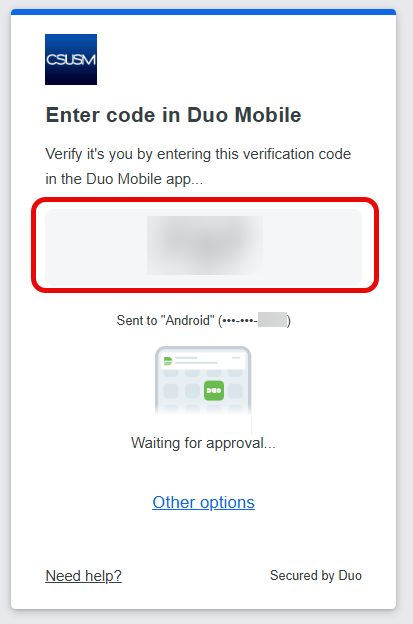
Satisfy the Duo multi-factor authentication request - select either option below.
Click on "Add a Sign in Method" , and select "Microsoft Authenticator"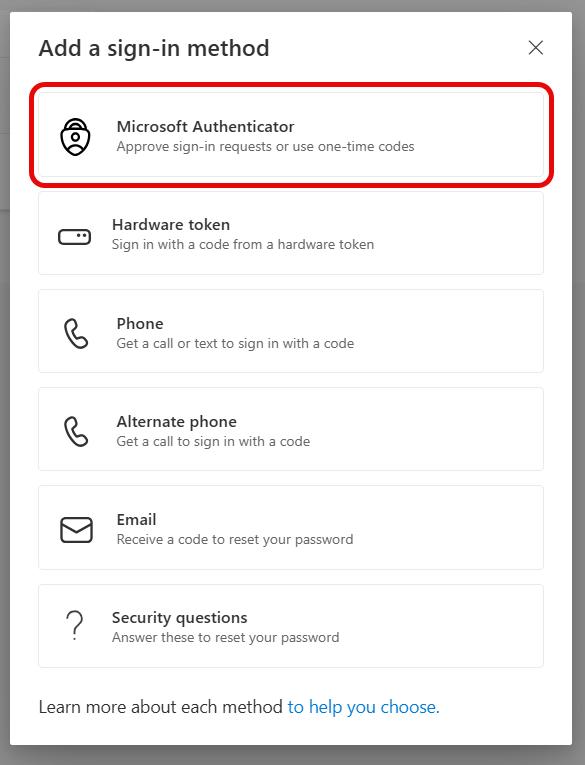
Download the Microsoft Authenticator App:
Microsoft Authenticator - Apps on Google Play
Microsoft Authenticator App - App Store
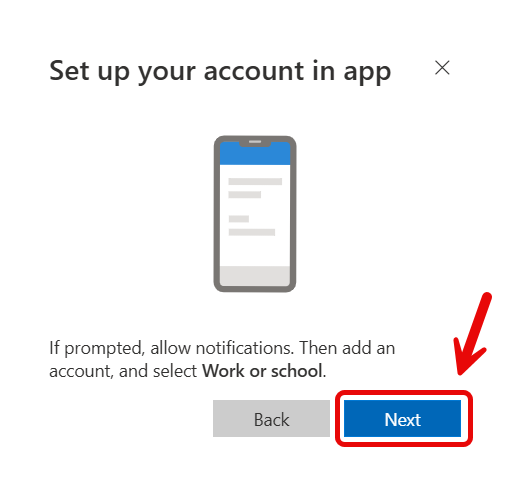
Once the app is installed, push the “Next” button through the setup page until you get to the “Scan QR code” page. 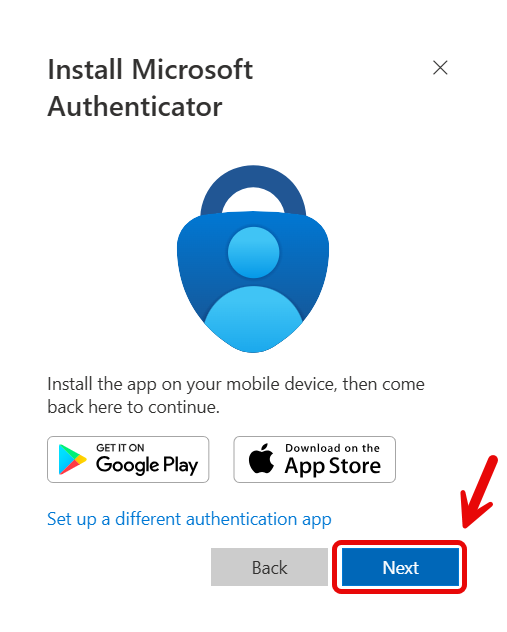
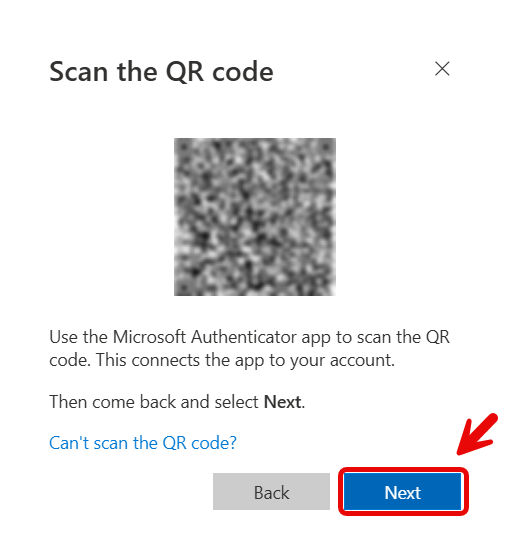
Open the authenticator app and select the QR circle at the bottom right of your screen. 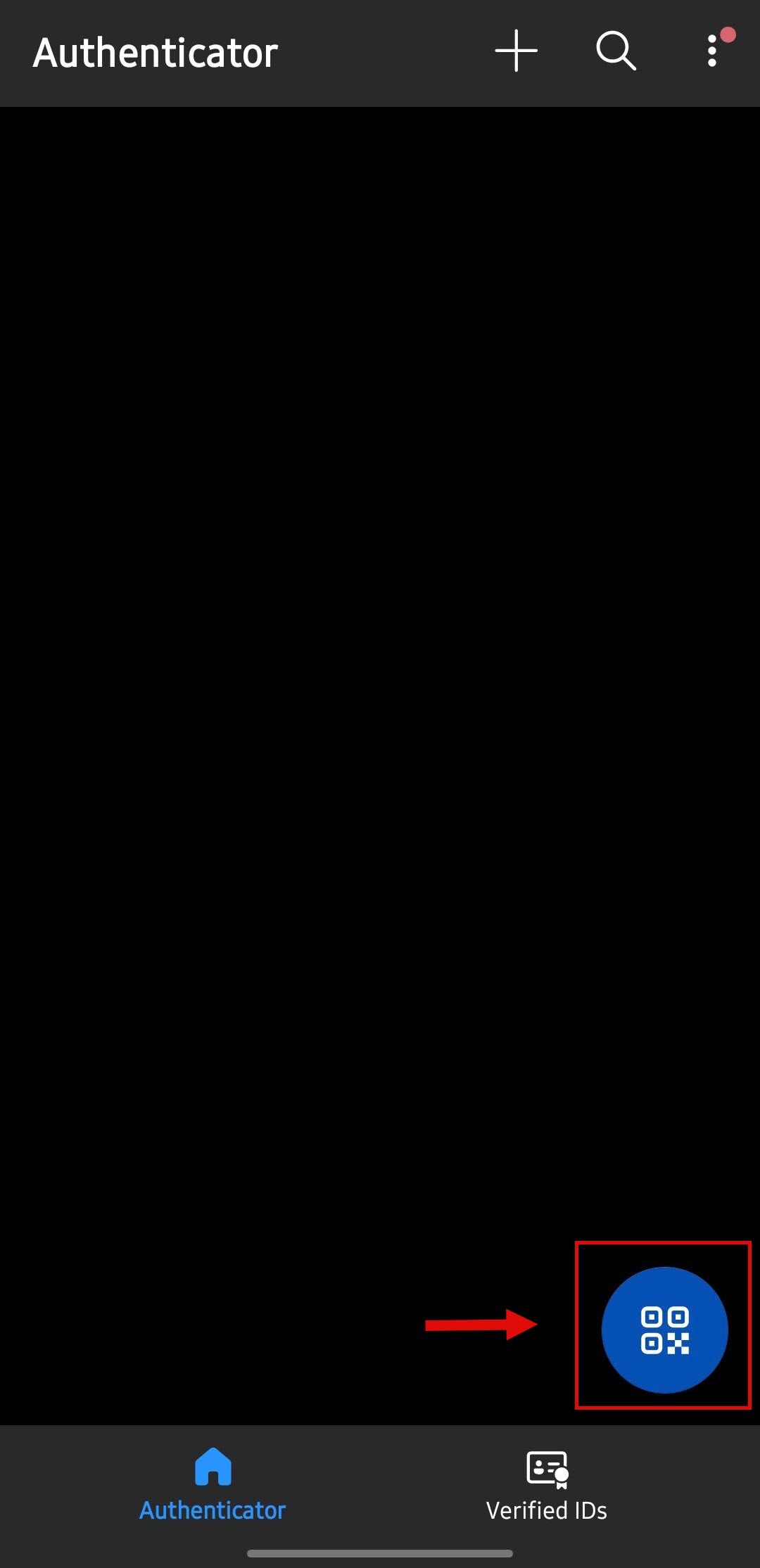
You’ll see a prompt for permission to use your camera. Please tap "Allow." Scan the QR code on your screen. Once scanned, it will confirm that your account has been added to the app.
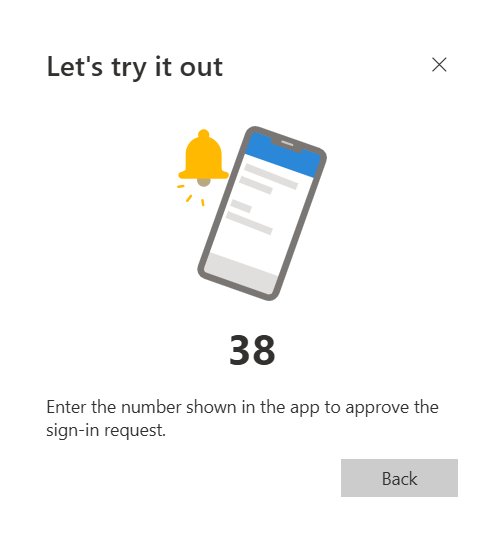
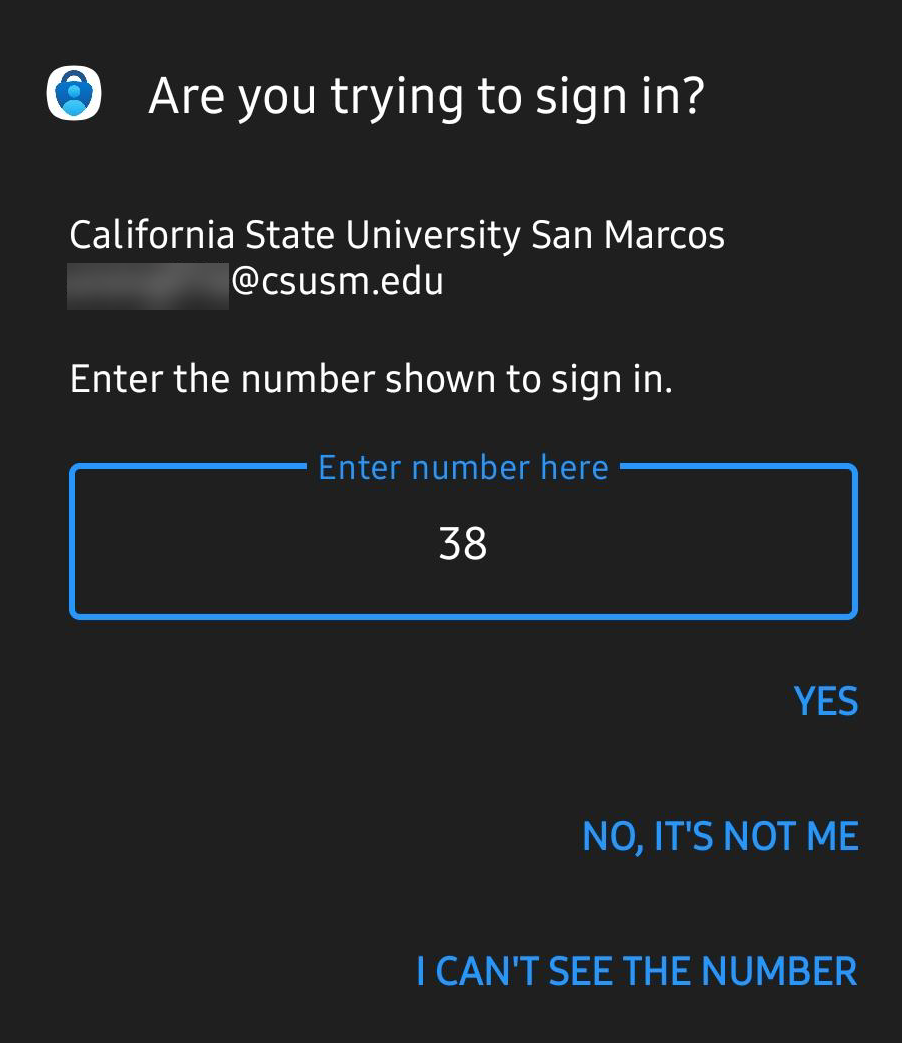
After you scan the QR code, Microsoft Authenticator will provide you with a two-digit number to input on your mobile device. Input that number to complete the authenticator linking process.
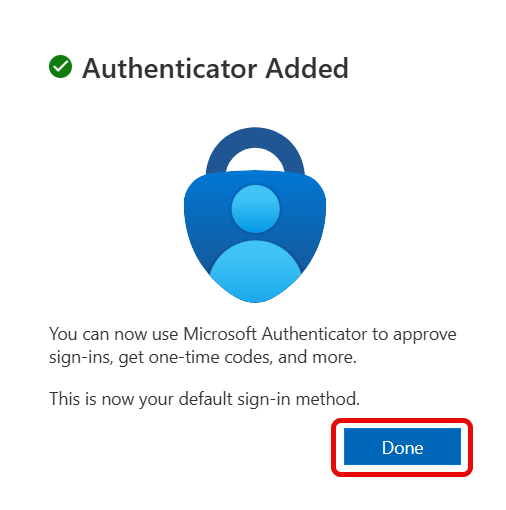
Congratulations, you have now activated Microsoft Authenticator!
Support
If you experience any issues activating Microsoft Authenticator, contact the CSUSM help desk at 760-750-4790 or techsupport@csusm.edu.
Cybersecurity Awareness Month
More information and resources on Cybersecurity Awareness Month can be found on the Cybersecurity Awareness Month landing page