

 myCSUSM






Printing with PawPrint
Available On-Campus Only
pawprint.csusm.edu is only available on CSUSM Wi-Fi/Ethernet and Lab Computers.
If you cannot access the website, please make sure you are connected to CSUSM or eduroam Wi-Fi.
Printing Sensitive or Personal Information?
If you're printing personal or sensitive documents, please make sure you're at the correct printer location.
Pick up your printouts right away.
CSUSM/IITS is not responsible for documents left unattended.
- Locations of Printers On-Campus
Printer Name in PawPrint:
kel2000a.csusm.edu
kel2000b.csusm.edu
kel2000c.csusm.edu
kel3301a.csusm.edu
kel3301-c.csusm.edu
kel4307a.csusm.edu
kel5320a.csusm.edu
mark2fla.csusm.edu
usu4010.csusm.eduHousing PawPrint Printers:
oakhall.csusm.edu
quad-bw.csusm.edu
quad-color.csusm.edu
uva-bw.csusm.edu
uva-color.csusm.eduOn-Campus Locations:
Kellogg Library 2000 (2nd Floor) Technology Learning Center
Kellogg Library 2000 (2nd Floor) Technology Learning Center
Kellogg Library 2000 (2nd Floor) Technology Learning Center
Kellogg Library 3301 (3rd Floor)
Kellogg Library 3301 (3rd Floor)
Kellogg Library 4307 (4th Floor)
Kellogg Library 5320 (5th Floor)
Markstein Hall 2nd Floor
USU 4010 (4th Floor)Housing Locations:
Black Oak Hall
QUAD
QUAD
UVA
UVA - How much does printing cost?Black & White: 12¢ per page.
Color: 25¢ per page. - How to sign into PawPrint
Click here to go to PawPrint
Sign in with your CSUSM username and password.
You username is the first part of your CSUSM email, do not include @csusm.edu.pawprint.csusm.edu is only available on CSUSM Wi-Fi/Ethernet and Lab Computers.
If you cannot access the website please make sure you are connected to CSUSM or eduroam Wi-Fi.Using Safari and having issues?If you are unable to reach pawprint.csusm.edu and you are using Safari on a Apple Device, please try using another browser like Chrome, Firefox, or Edge.
You may also sign into a lab computer on Kellogg Library 2nd and 3rd Floor.
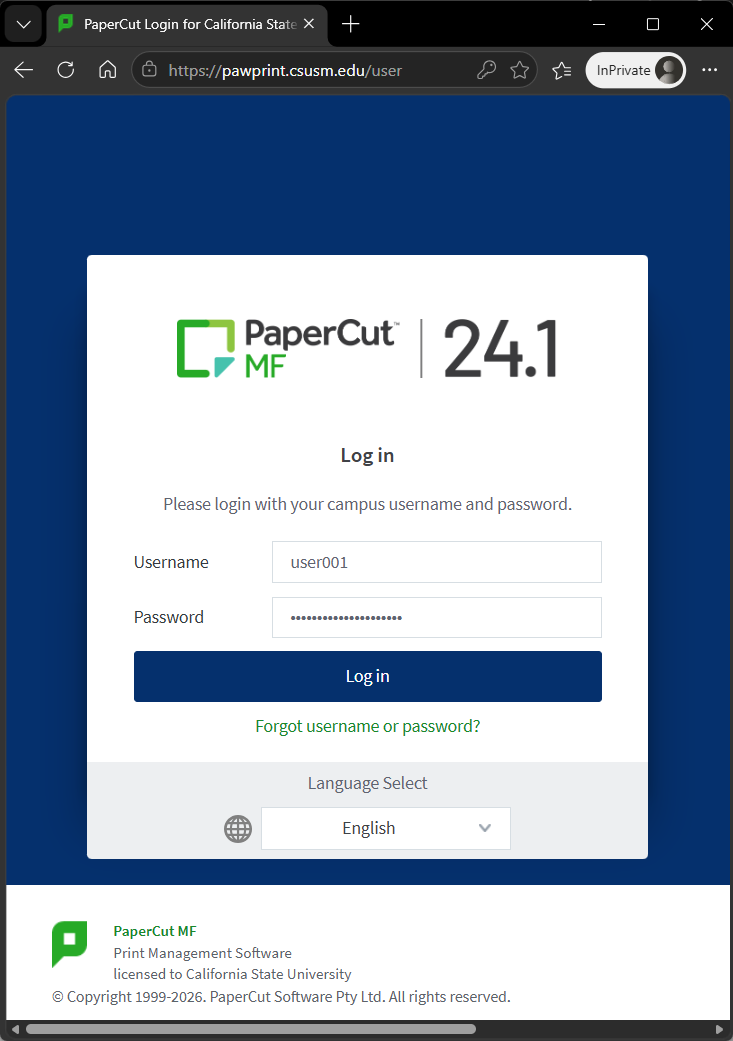
Logging in will take you to the homepage.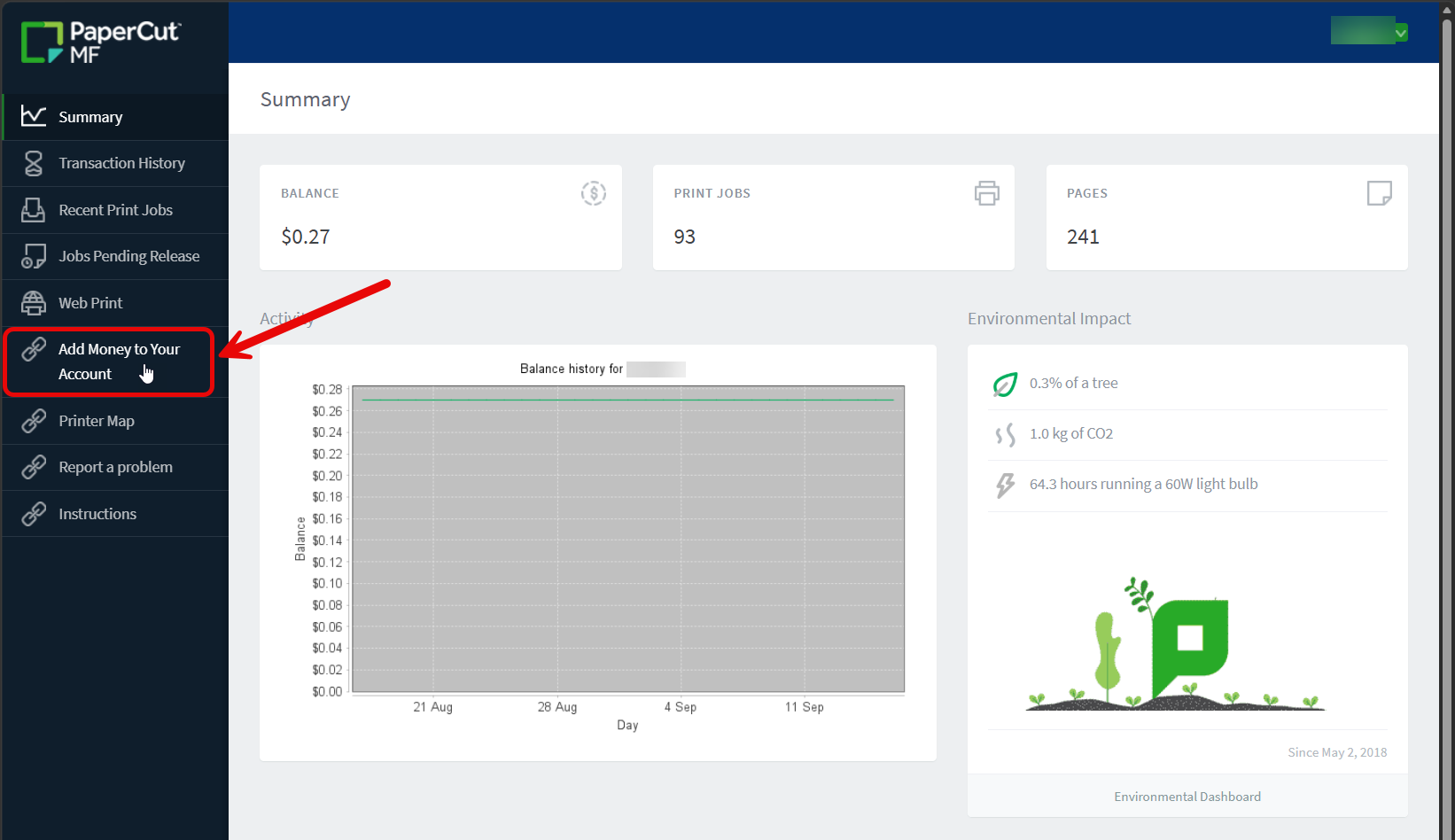
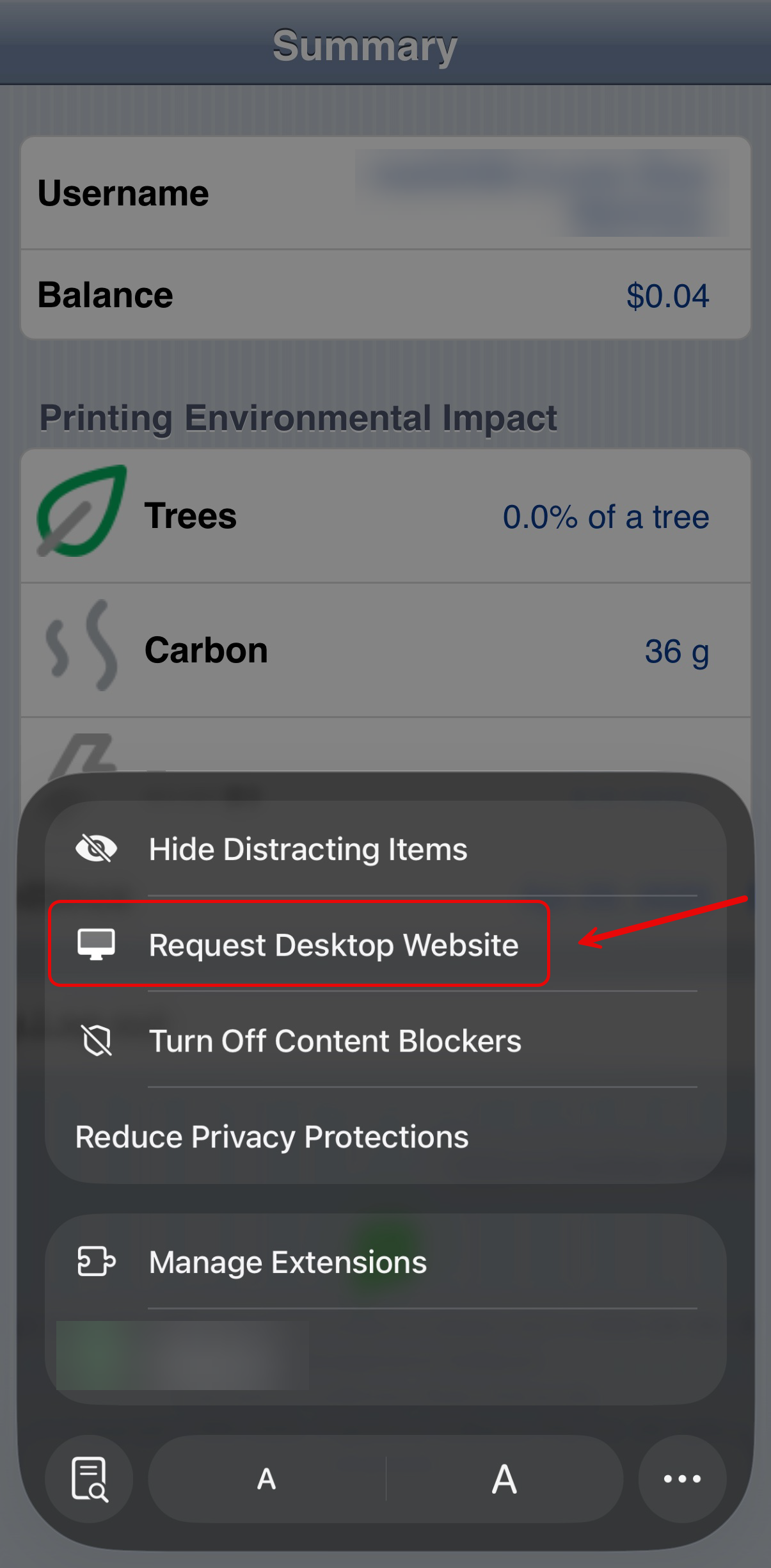
If you are signing in on a mobile device and see this page, please click the "View in Desktop mode" link at the bottom of the screen.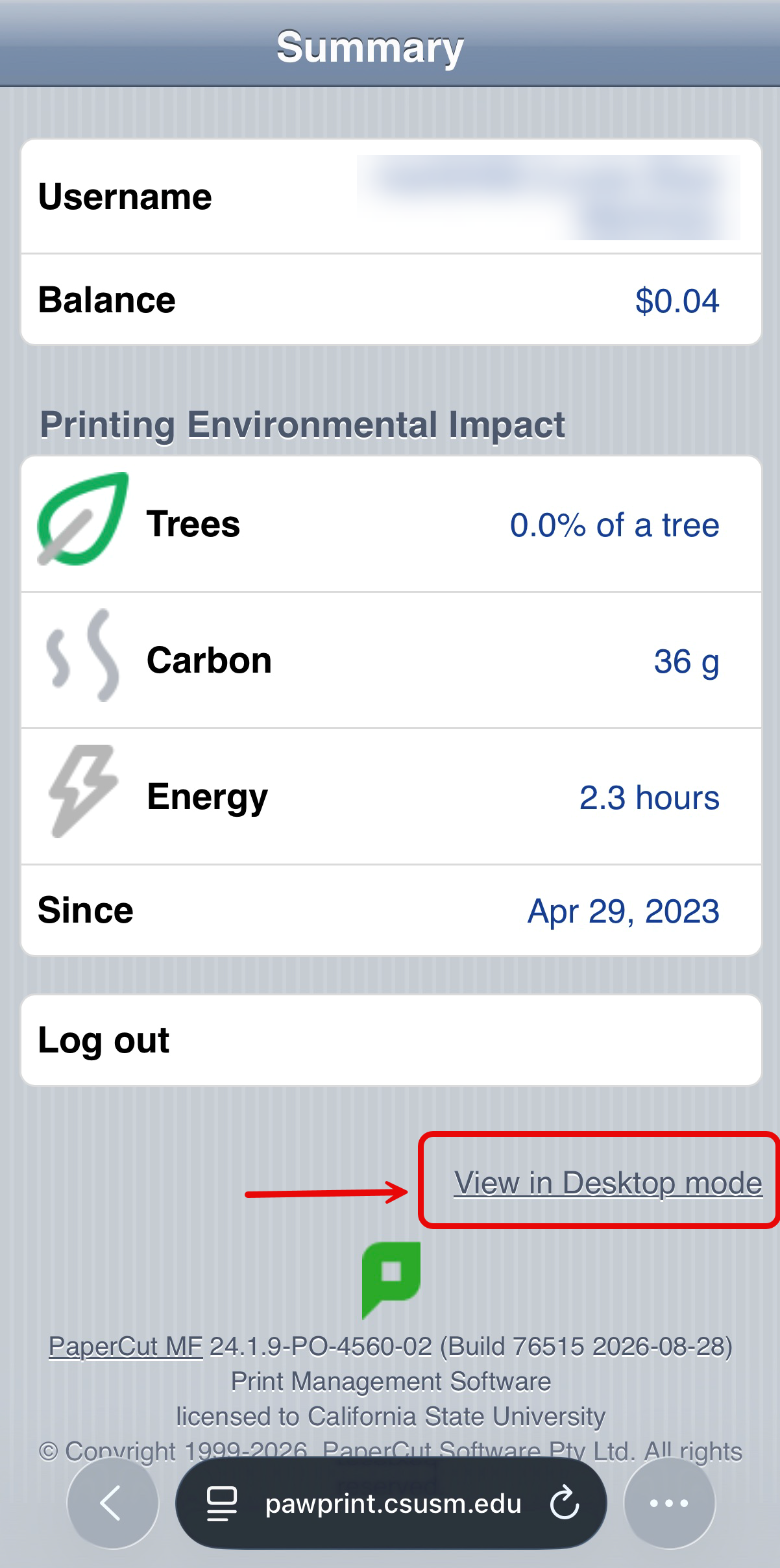
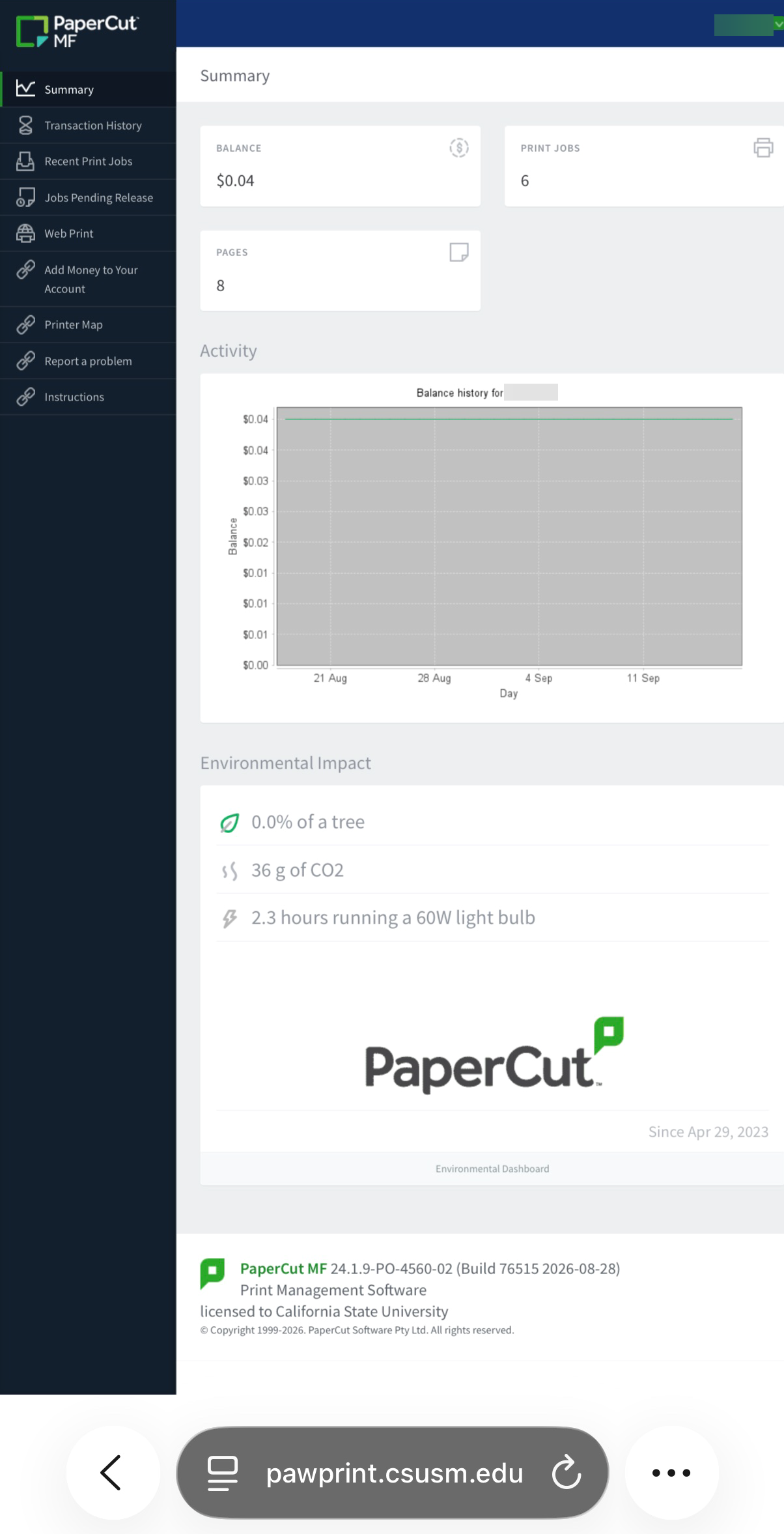
- How to add money to your Pawprint AccountUnable to Add Funds to your PawPrint Account
PawPrint Status Update
If you’re having trouble adding funds to your PawPrint account on your personal device, please sign in on a campus lab computer instead.
Lab computers are available on the 2nd and 3rd floors of Kellogg.
We’re aware of the issue and are currently working on a fix. Thanks for your patience!
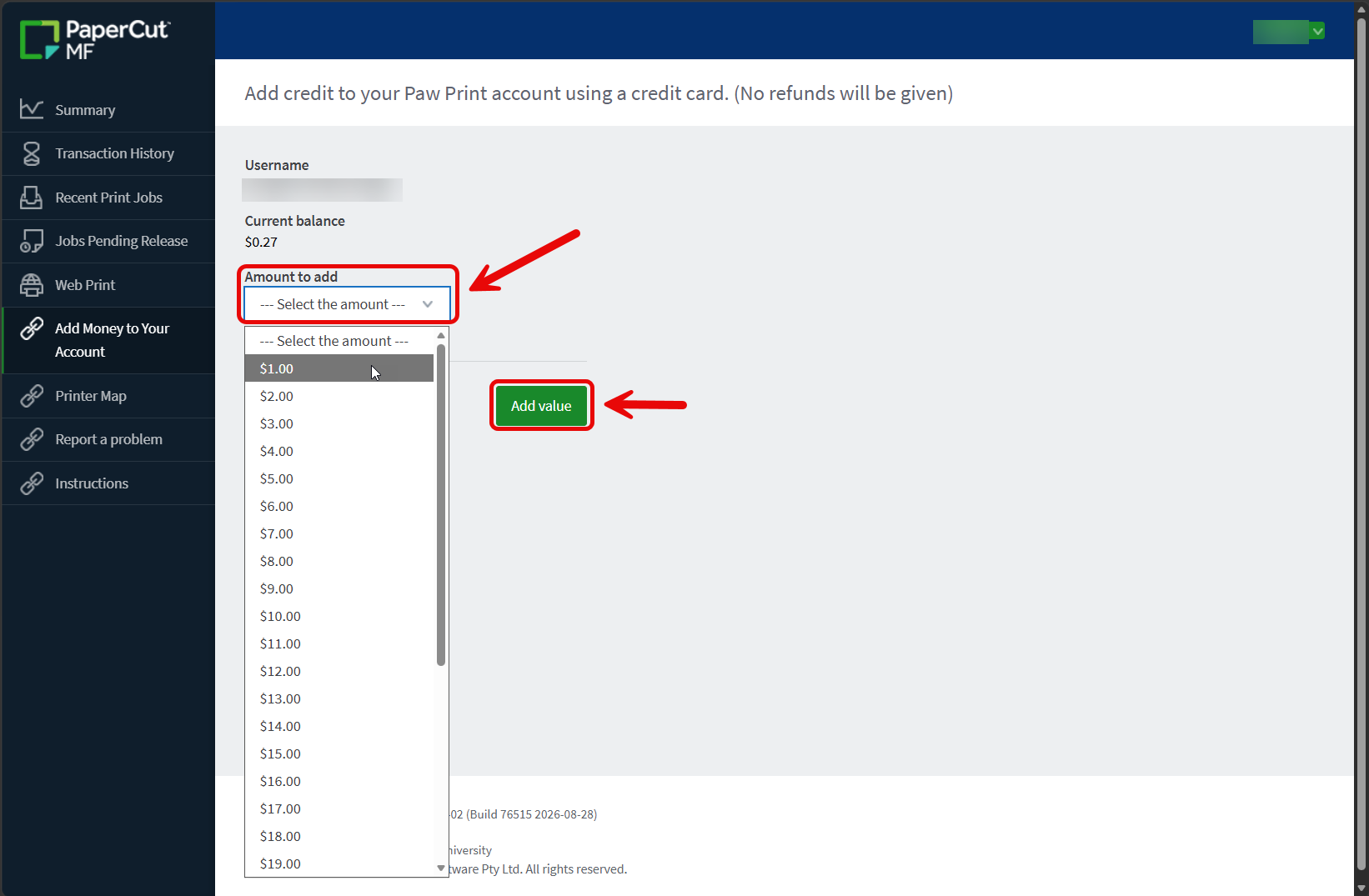
- On the left side of your screen Select, "Add Money to Your Account"
- Add money to your account by clicking on the "Amount to add" dropdown.
- Select the amount you would like to add, then select the green "Add value" button.
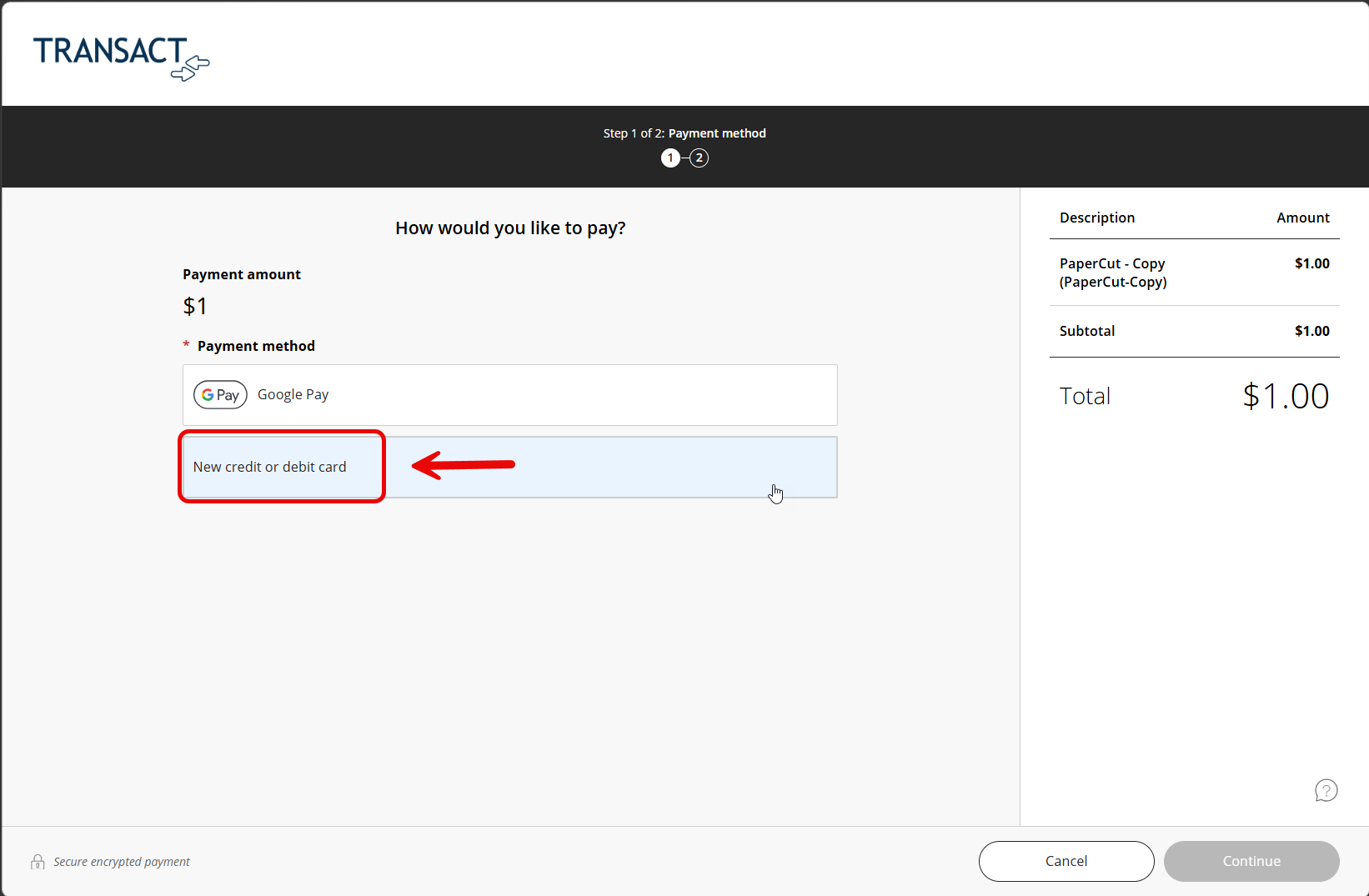
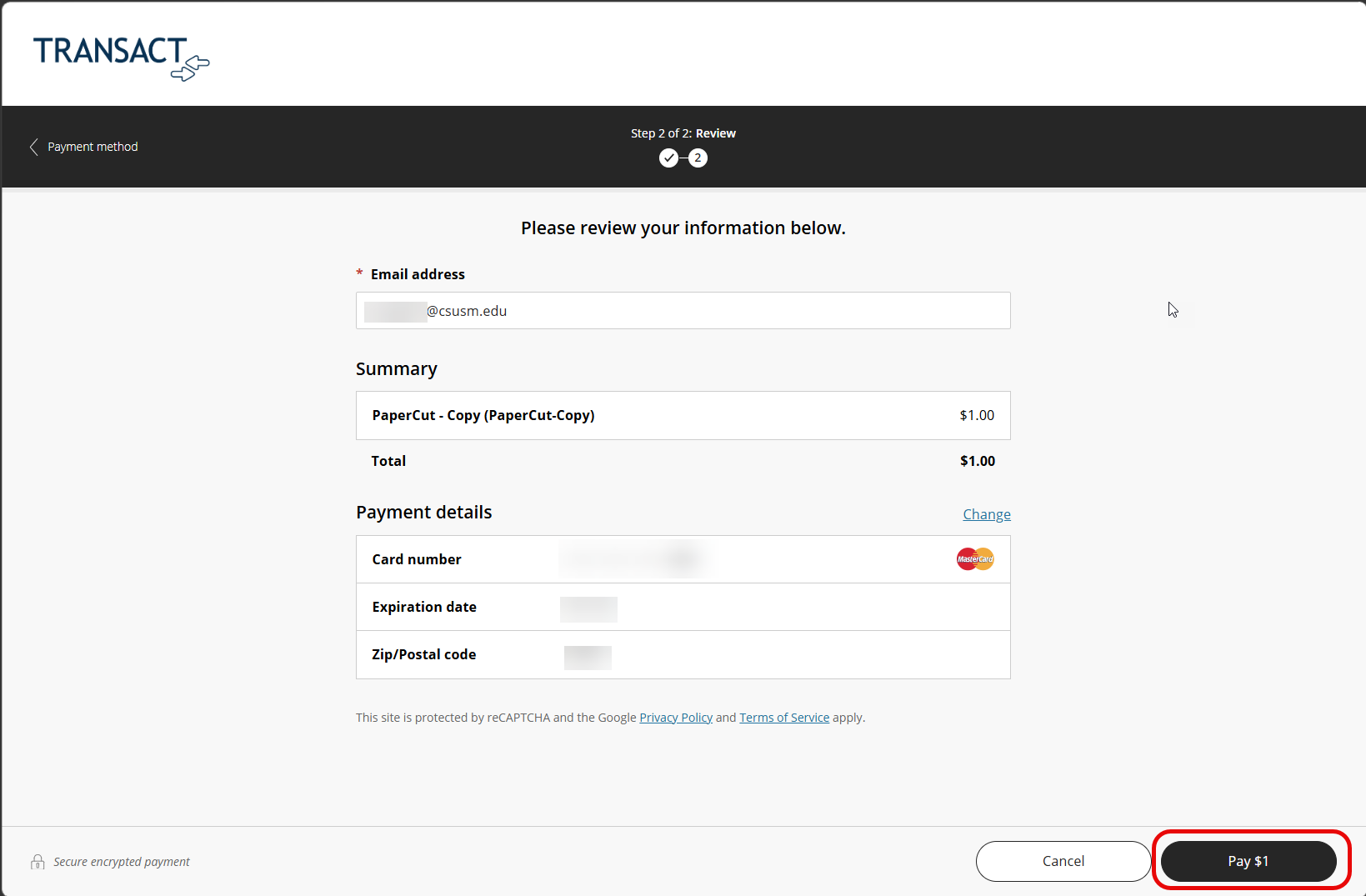
- You will be redirected to a payment page, here you are able to pay with Apple Pay,
Google Pay, or by adding a credit or debit card. Please make sure to accept the smart
pay agreement when finalizing payment.
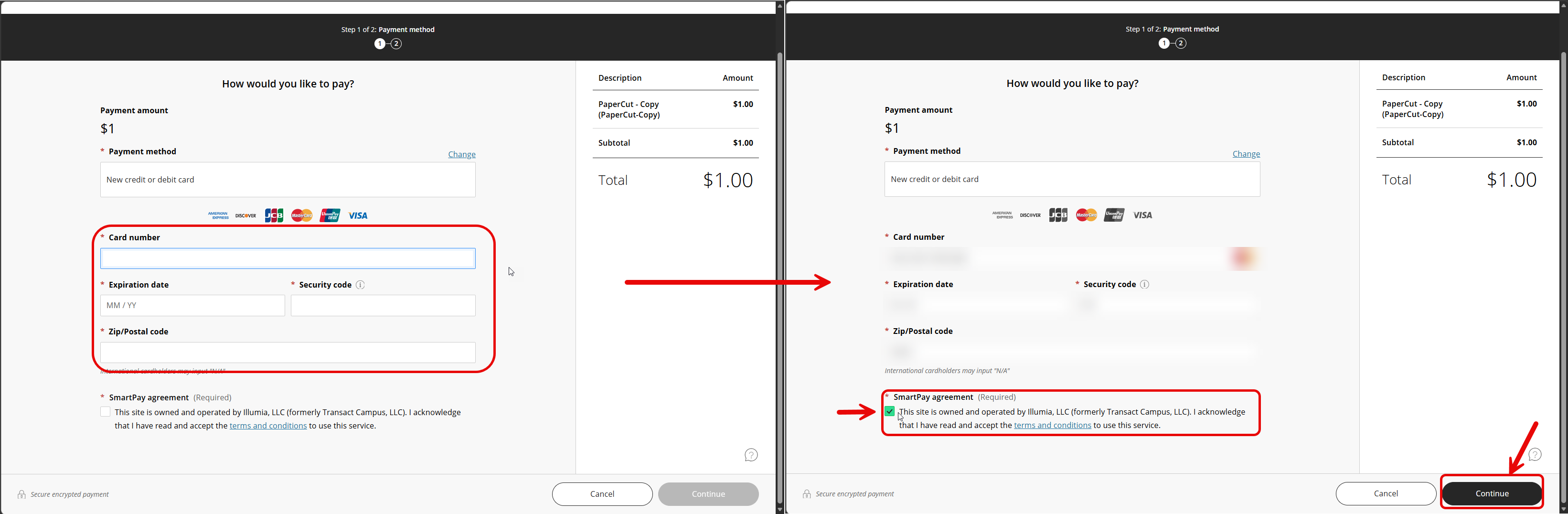
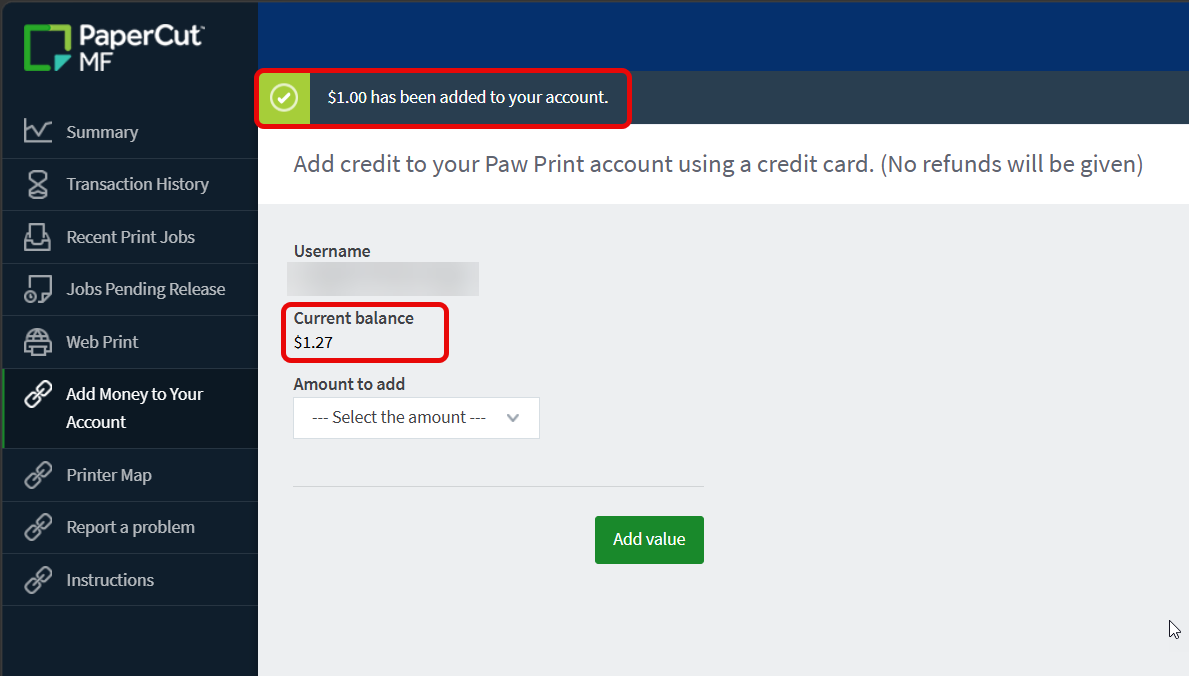
- You will be redirected back to the PawPrint Website with a confirmation of the amount
added to your account.
- You can now print using the funds added to your account.
Please refer to the section below titled, "How to print using Pawprint" for instructions.
- On the left side of your screen Select, "Add Money to Your Account"
- How to print using PawPrint
- To print using PawPrint, please ensure that you have enough funds in your account.
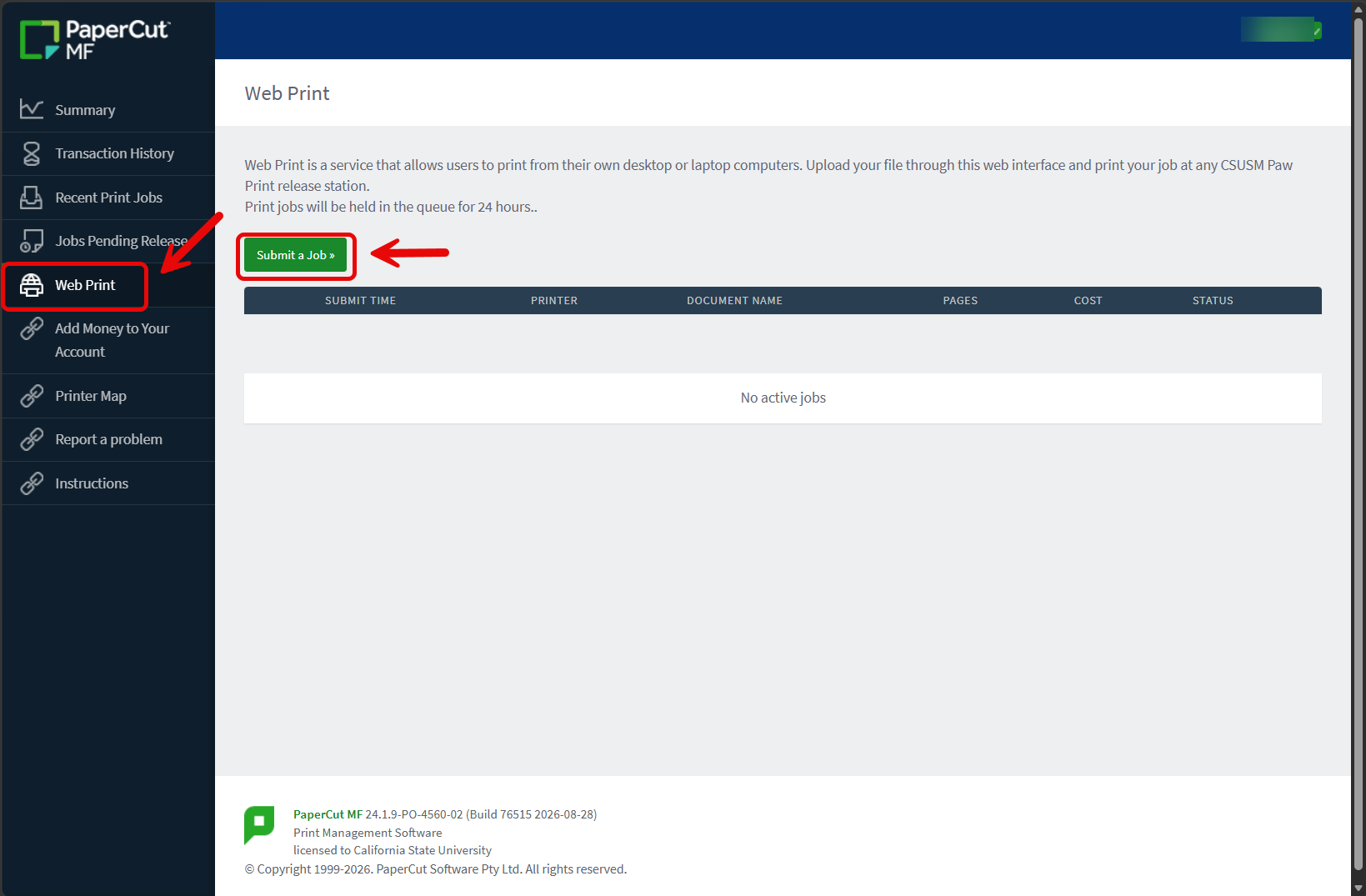
Please refer to the section above titled, "How to add money to your Pawprint Account" for instructions. - On the left side of your screen Select, "Web Print".
- Then select the green button that says, "Submit a Job".
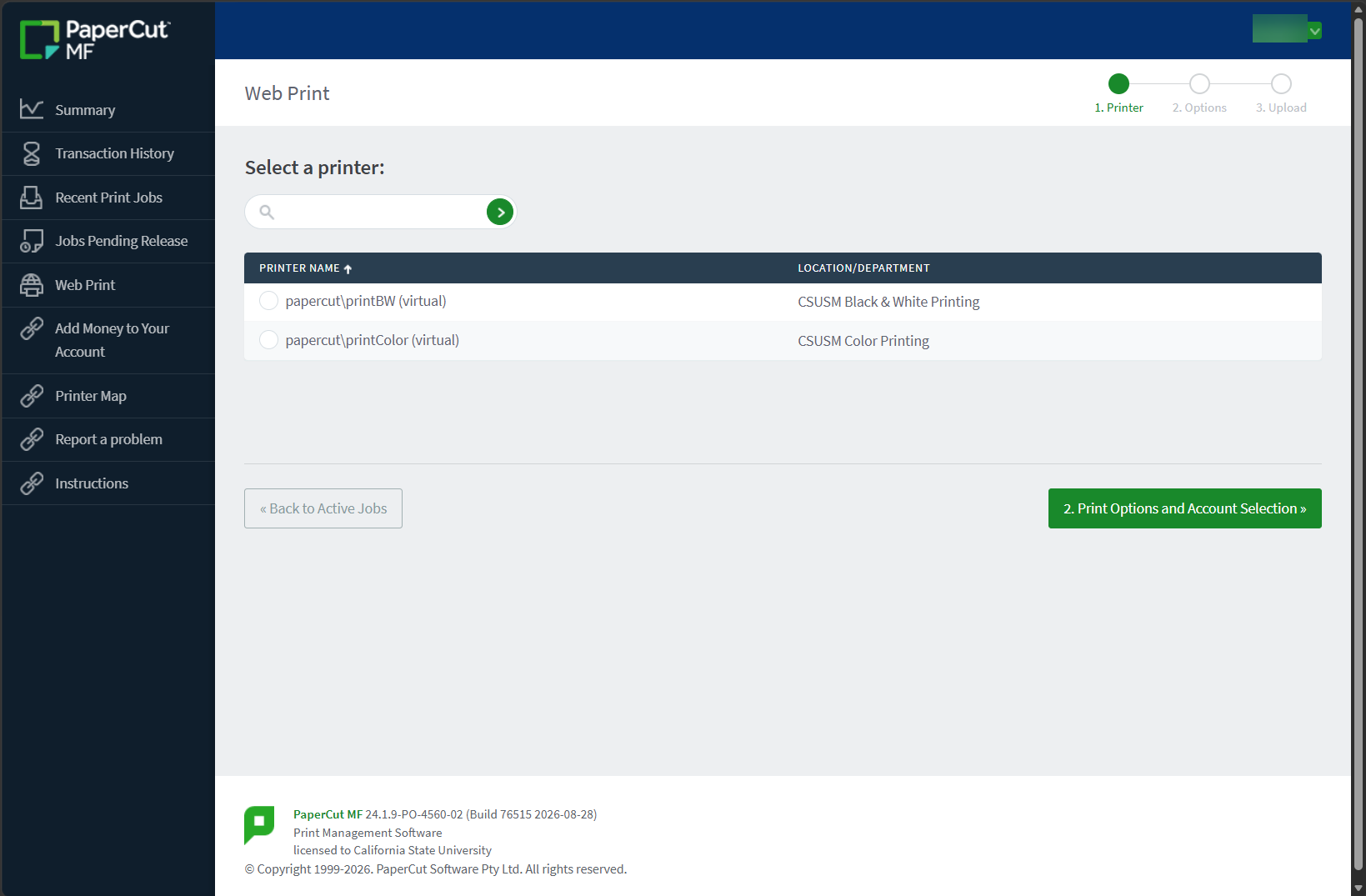
- Select what type of printing you would like to print with. (Black & White or Color)
- Once chosen, click on the green button, "Print Options and Account Selection".
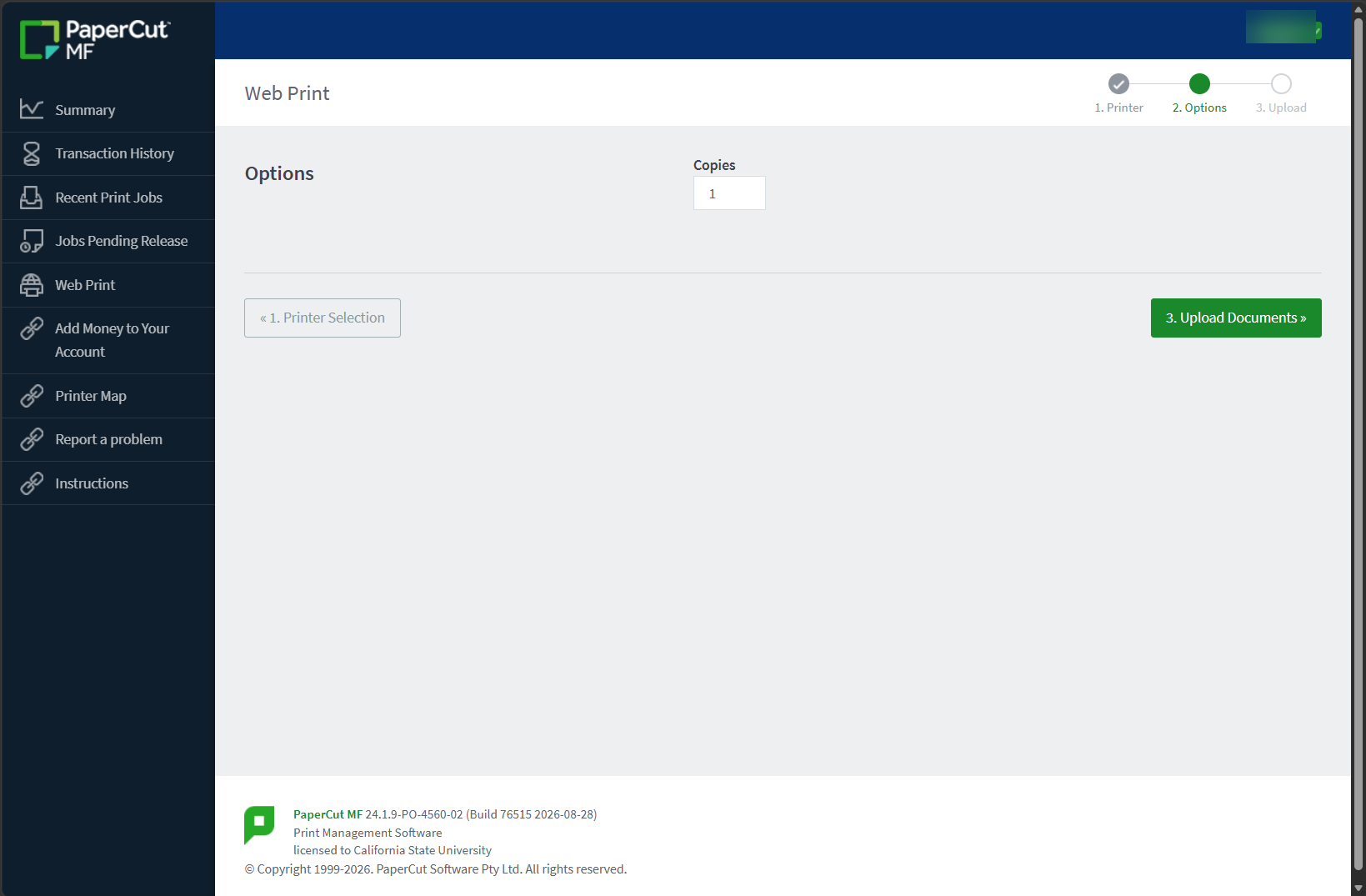
- If you want more than 1 copy of the file you would like to print, please change the
number inside of the copies box, and then select the green button, "Upload Documents".
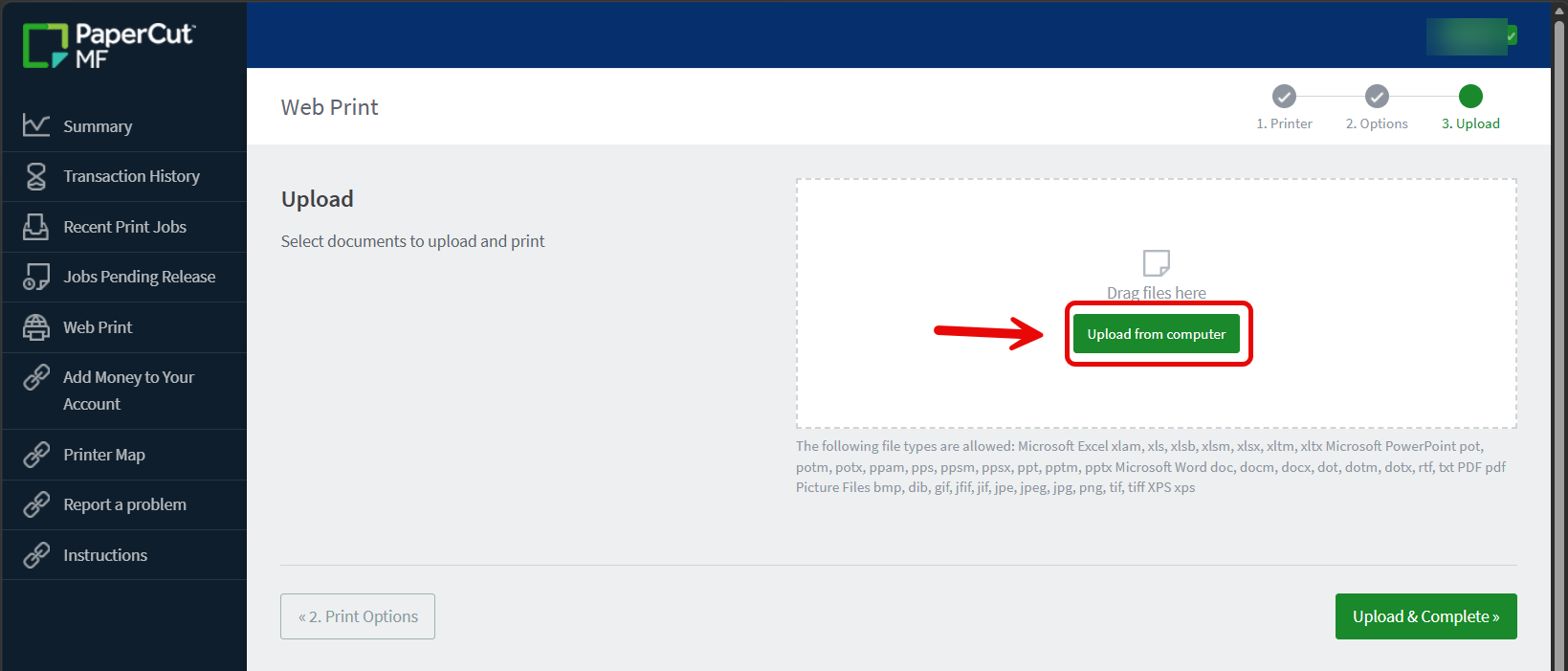
- Then select the green button that says, "Upload from computer".
- This will open the Files folder on your device, select the file you would like to
upload.
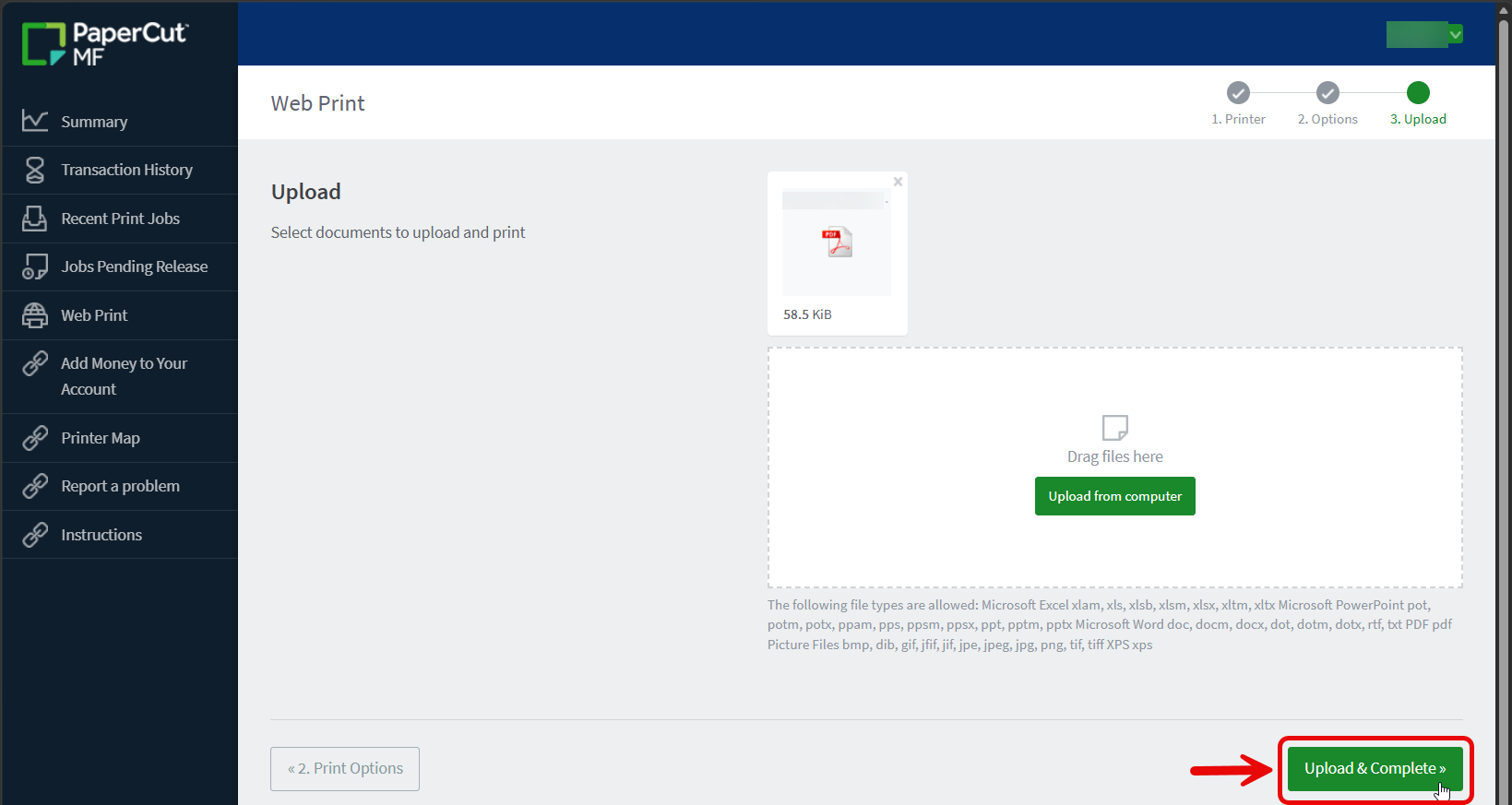
- Once you've selected the file, it will take a few moments to upload to the website.
- Then select the green button that says, "Upload & Complete" at the bottom of the screen.
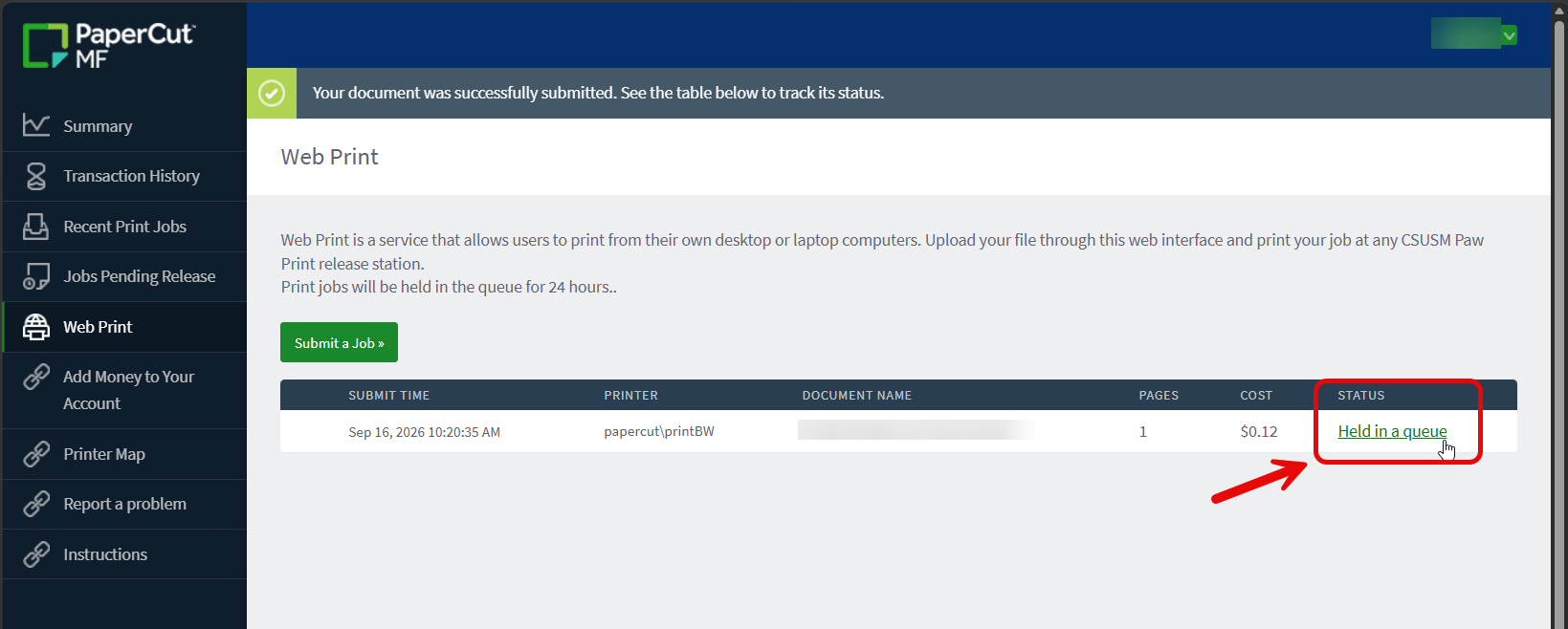
- To get the printing process stared, please click on "Held in a queue".
- You document is now ready to be Printed or Canceled.
- Select "Print" if this is the correct document you'd like to print.
- Select "Cancel" if you uploaded the incorrect document.
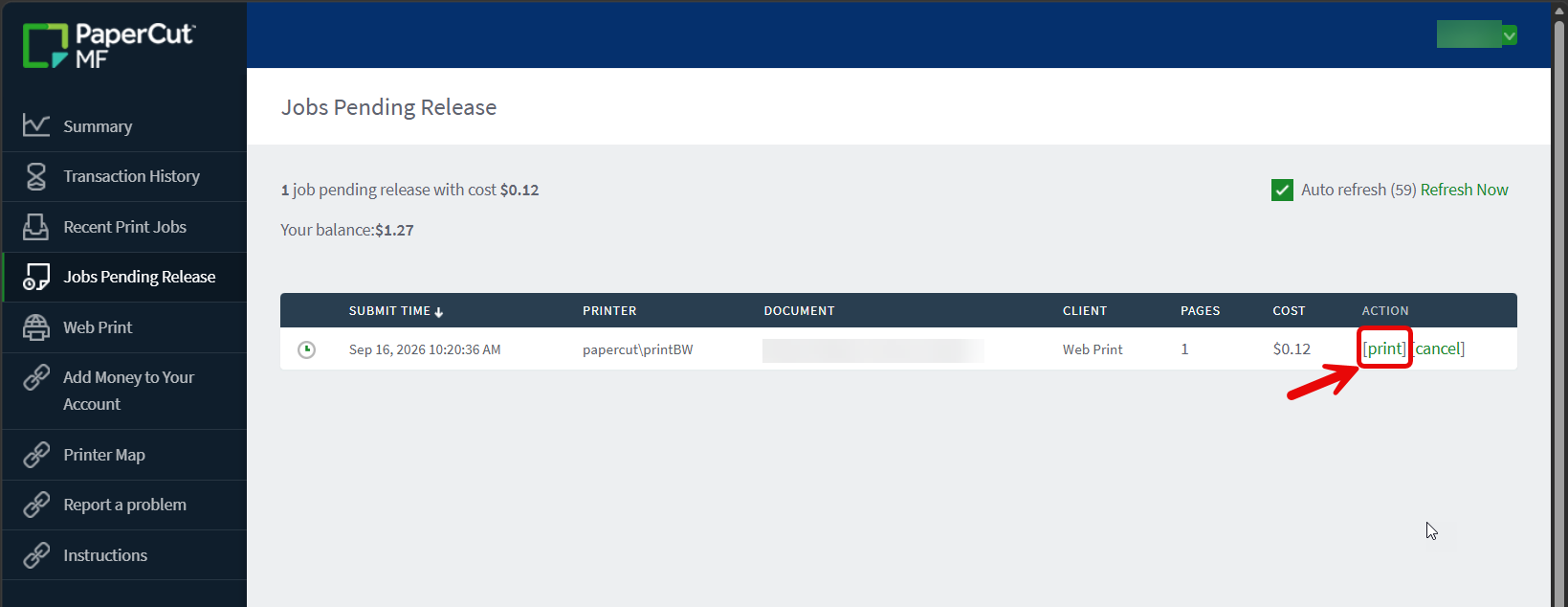
- Click the green link on the right of the printer you would like to print your document to.
- The location of the printer will be on the right
- This will print your document as soon as you click. Go to that location to retrieve
your printed items.
The first number of the Room number is the Floor of the building.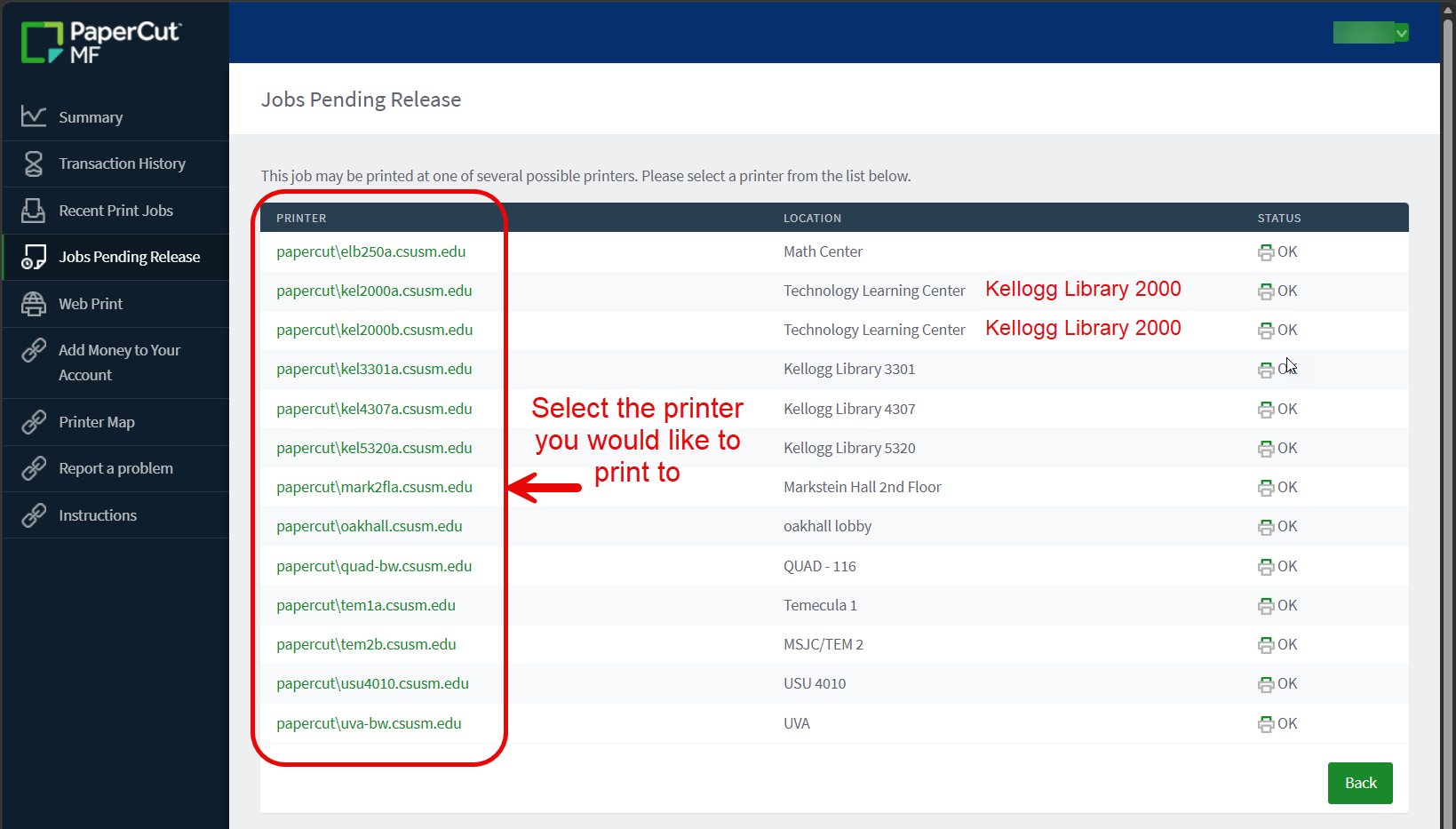
- If you experience any issues printing, please email techsupport@csusm.edu or visit the Help Desk located on the 2nd Floor of Kellogg Library.
- To print using PawPrint, please ensure that you have enough funds in your account.
- Report a Printing Issue
- If you experience any issues printing:
You can also email techsupport@csusm.edu or visit the Help Desk located on the 2nd Floor of Kellogg Library.