

 myCSUSM






Enhancing Account Security with SSPR
To improve account security and reduce login disruptions, enrollment in Microsoft Self‑Service Password Recovery (SSPR) will be required for all users beginning Monday, April 6, 2026.
Starting April 6th, all users will be prompted to enroll in SSPR upon logging in to any CSUSM technology resources.
SSPR allows you to securely reset or unlock your account without contacting the Helpdesk.
Why enroll?
Enrolling helps ensure a smooth experience:
-
Avoid account lockouts and delays
Users who are not enrolled may be unable to reset their password or regain access when it’s needed most. -
Ensure your information is set up correctly
Early enrollment gives you time to confirm your authentication methods (such as a mobile device or alternate contact method) are accurate and working. -
Prevent last‑minute issues
Waiting until the requirement goes into effect may result in higher demand for support and slower resolution times.
Why SSPR is required
Microsoft SSPR provides important benefits for both users and the campus community:
- 24/7 password resets – Reset your password anytime, anywhere, without waiting for business hours.
- Faster access recovery – Regain access to your account in minutes if you forget your password or get locked out.
- Improved security – Verifying your identity through multiple authentication methods helps protect your account from unauthorized access.
- Reduced service disruptions – Fewer login issues mean less downtime for teaching, learning, and work.
What you need to do
Upon logging in to your campus account, you will be prompted to either confirm your recovery methods, or, if you have not configured any recovery methods, to configure them.
Configure Recovery Methods
If you have not configured self-service password recovery, you will be presented with the following prompt upon logging in:
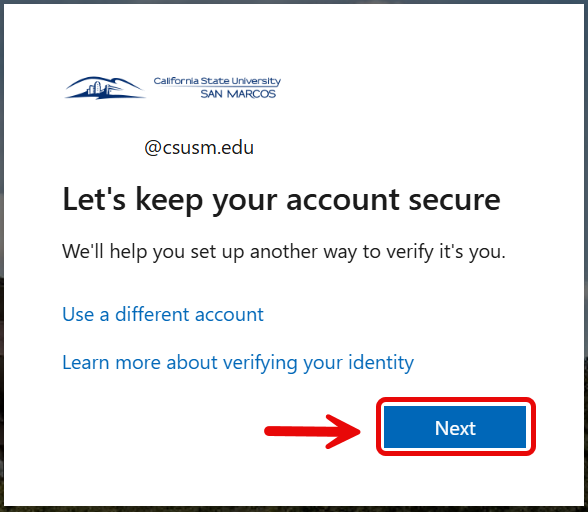
Click Next and you will then be directed to configure account recovery methods.
You will be directed to install Microsoft Authenticator, but this is not required. If you do not want to use Microsoft Authenticator, click "Setup a different way
to sign in" at the bottom of the prompt.
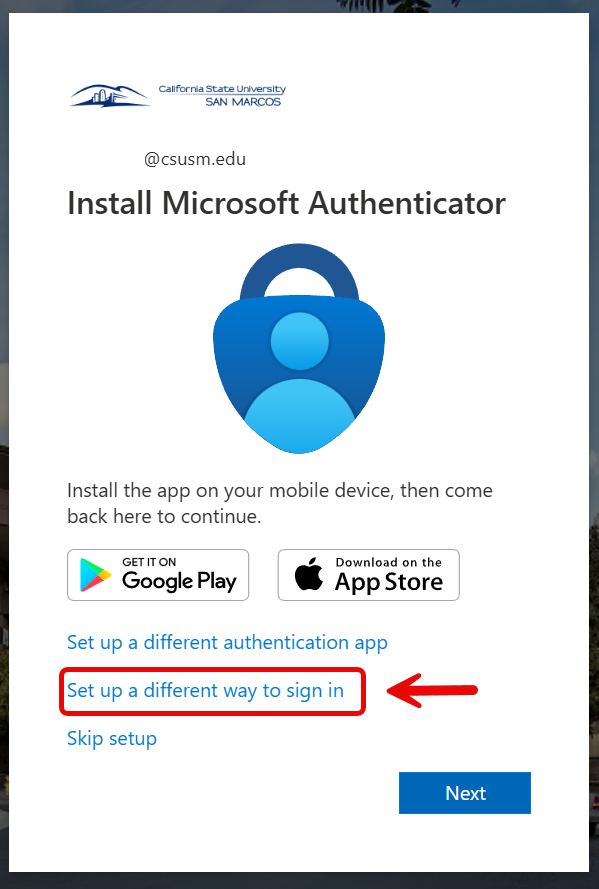
You may select to configure any of the following methods:
- Microsoft Authenticator
*Phone and Security Questions are not recommended as this feature is being retired by Microsoft in the near future.

Select your preferred recovery method and follow the on-screen instructions to finish
the configuration.
For more detailed instructions on setting up Microsoft Authenticator or setting up
email recovery please visit the following page.
Account Recovery Page
Confirm Recovery Methods
If you have already configured self-service password recovery, you will be presented with the following prompt upon logging in:
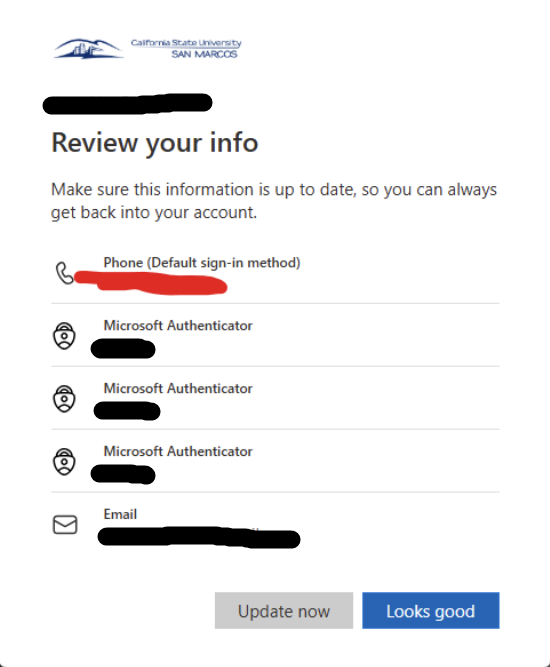
Click "Looks good" and you're all set!
If you have questions or need assistance, please contact the Help Desk at techsupport@csusm.edu.