
 myCSUSM






Fall 2026 Community Update
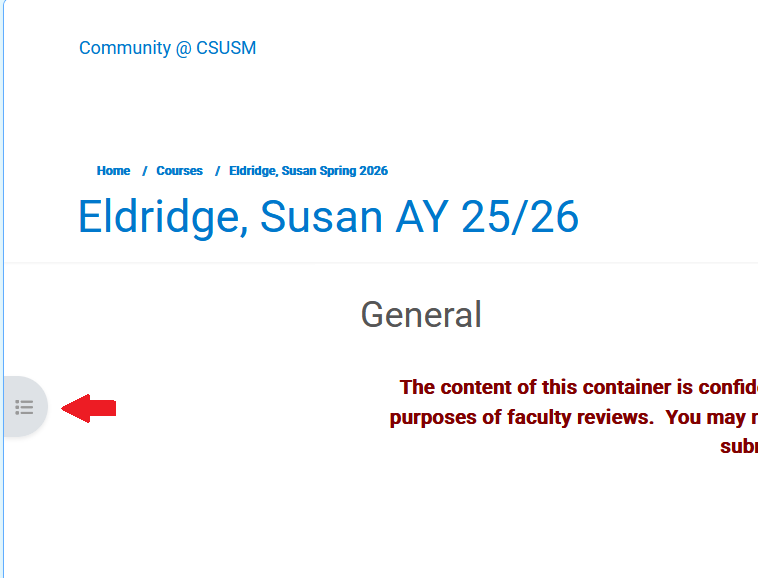
Community required several security updates in Summer 2026. Unfortunately this necessitated other updates that resulted in a visible change to how courses look. The Contents for each course is now no longer displayed at the top of the page. Instead, the Contents are in the Course Inbox sidebar on the left hand side that can be expanded and collapsed. It is only a layout change and will not impact how you add, edit, delete, or access content.
Course Index Details
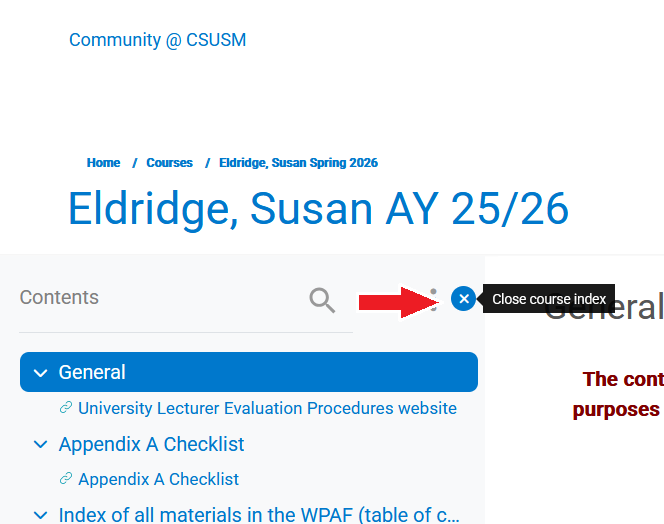
The Course Index is located on the left hand side of your course. Within the Course Index you have:
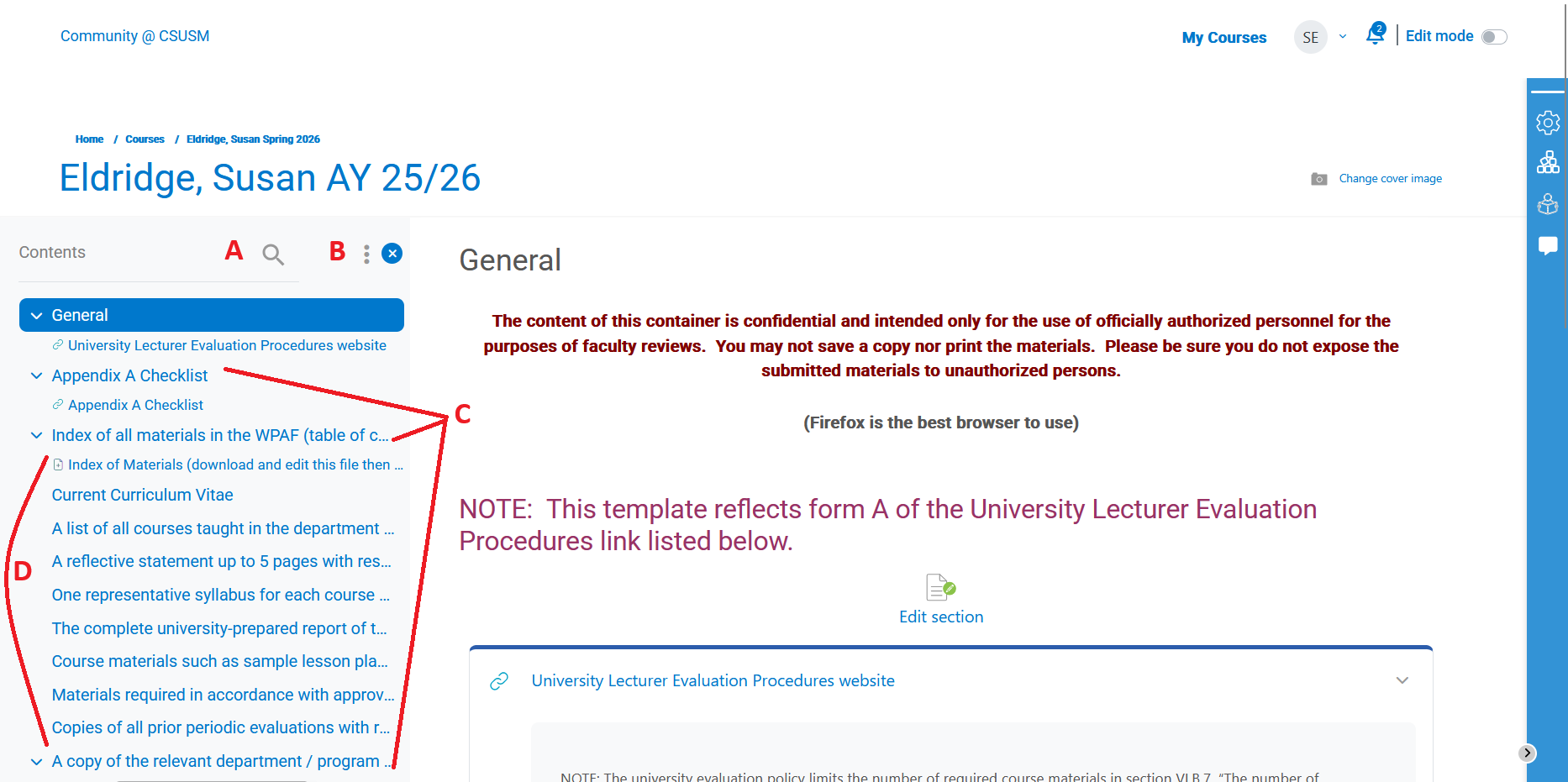
- the Content search box which allows you to search for content based on name
- the three dot menu opens to allow you to Expand all or Collapse all sections
- View list of sections
- View list of content items within each section. Be aware owners/instructors have the ability to prevent items from being listed in the course index. Make sure to view each section to see all visible section items.
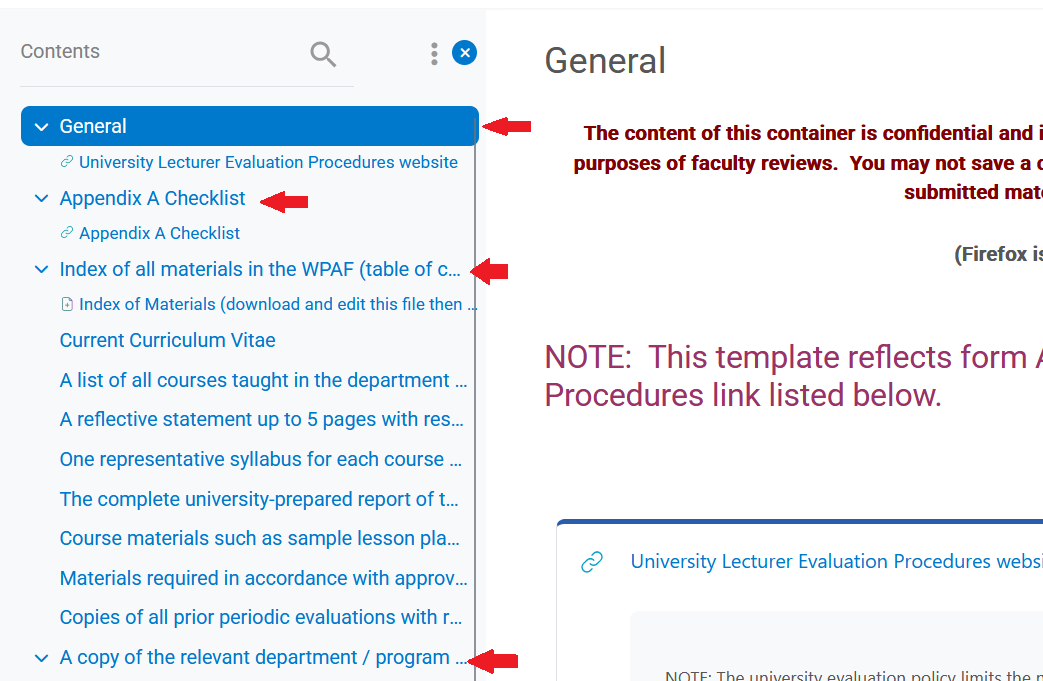
Navigate to Section
Click on a section name to display that section and all its content on the course page.
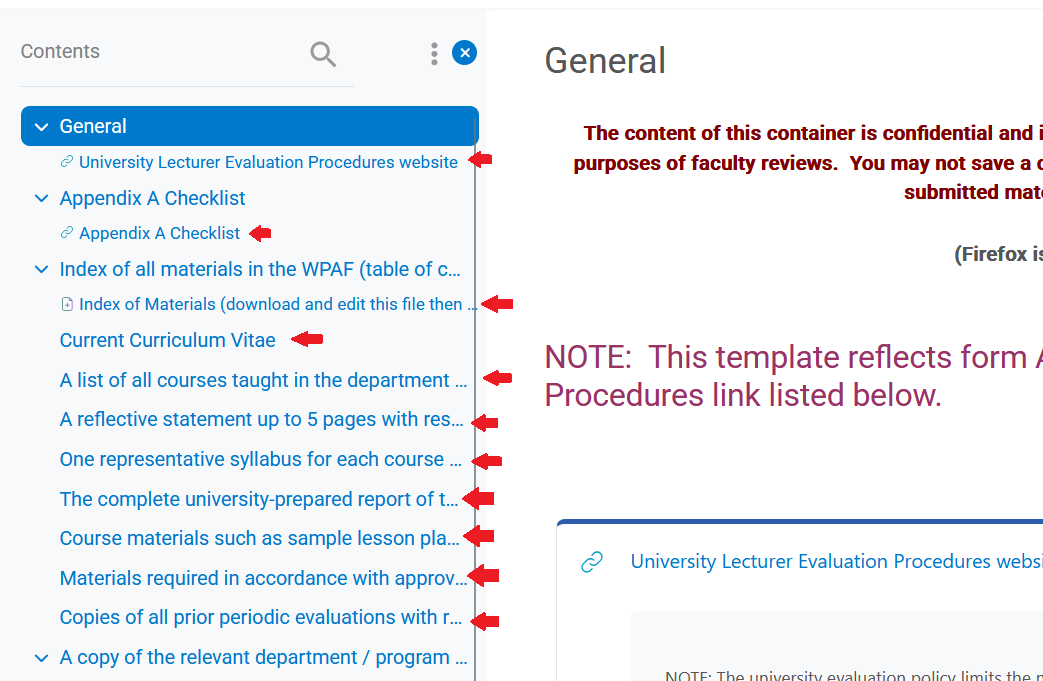
Navigate to Specific Resource
Click on the content item within the section to be taken to that content item. Be aware owners/instructors have the ability to prevent items from being listed in the course index. Make sure to view each section to see all visible section items.
Collapse/Expand Course Index
When expanded, click the x icon in the upper right of the sidebar to collapse the Course Index.
When collapsed, click the Course Index icon on the left hand side of the page to expand.