

 myCSUSM





Set Up Your CSUSM Student Account
Welcome Cougars!
To set up your Student account at CSUSM please follow the instructions in each of
the steps below.
If you need assistance with any step, please contact the Student Technology Helpdesk,
our contact information is at the end of this page.
- Step 1: Retrieve Your Login Information
Your CSUSM username will be what you will use to log into all CSUSM services.
Please follow the instructions below to find your username.- Check your inbox for an email from techsupport@csusm.edu or with the subject line,
Your CSUSM Log-in Information
. - Review the instructions provided in your welcome email.
- Keep your login information in a secure and accessible place.
- Please click the button below if you cannot find your information
- Once you have your username, you will need to set up your password.
I can't find my username
- Check your inbox for an email from techsupport@csusm.edu or with the subject line,
- Step 2: Set Up Your Password
Please follow the instructions below to create your password.
Create Your Password- Click the
Create Your Password
button above. - In the Email or Username section, type in the campus username that was provided to
you with "@csusm.edu" at the end.
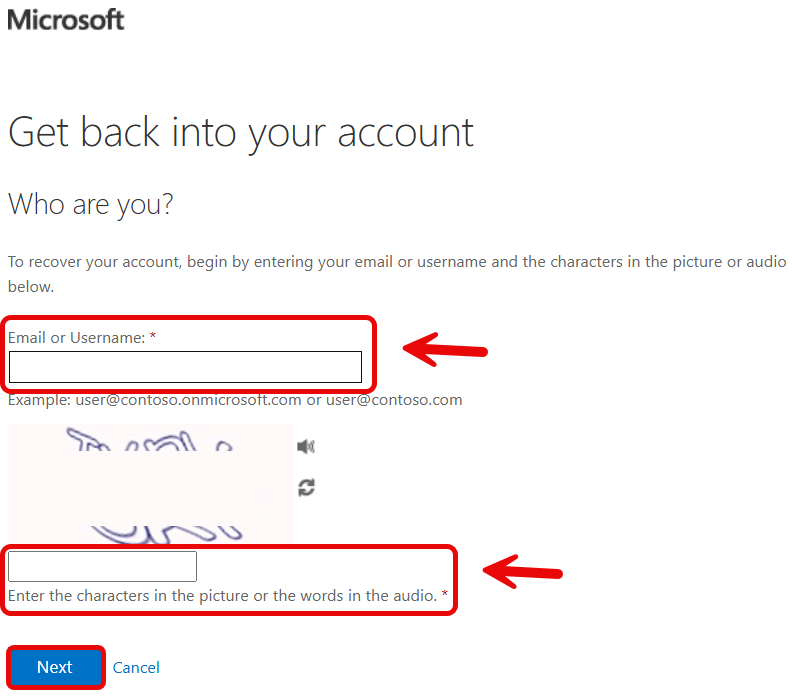
- Follow the steps on the screen to create your CSUSM Student password.
- Your password needs to be atleast 15 characters and no more than 32 characters. No special characters are required.
- The verification method will be the phone number you provided when you applied. You can choose to either receive a text message or an automated call for verification.
- If you did not provide a phone number or if the phone number looks incorrect or if
you are unable to create a your password, please fill out the following form for assistance.
I need help with my password
- Click the
- Step 3: Log into MyCSUSM
MyCSUSM is your student portal for important tasks, updates, and next steps.
Open MyCSUSM- Go to MyCSUSM.
- Sign in using your CSUSM username and password.
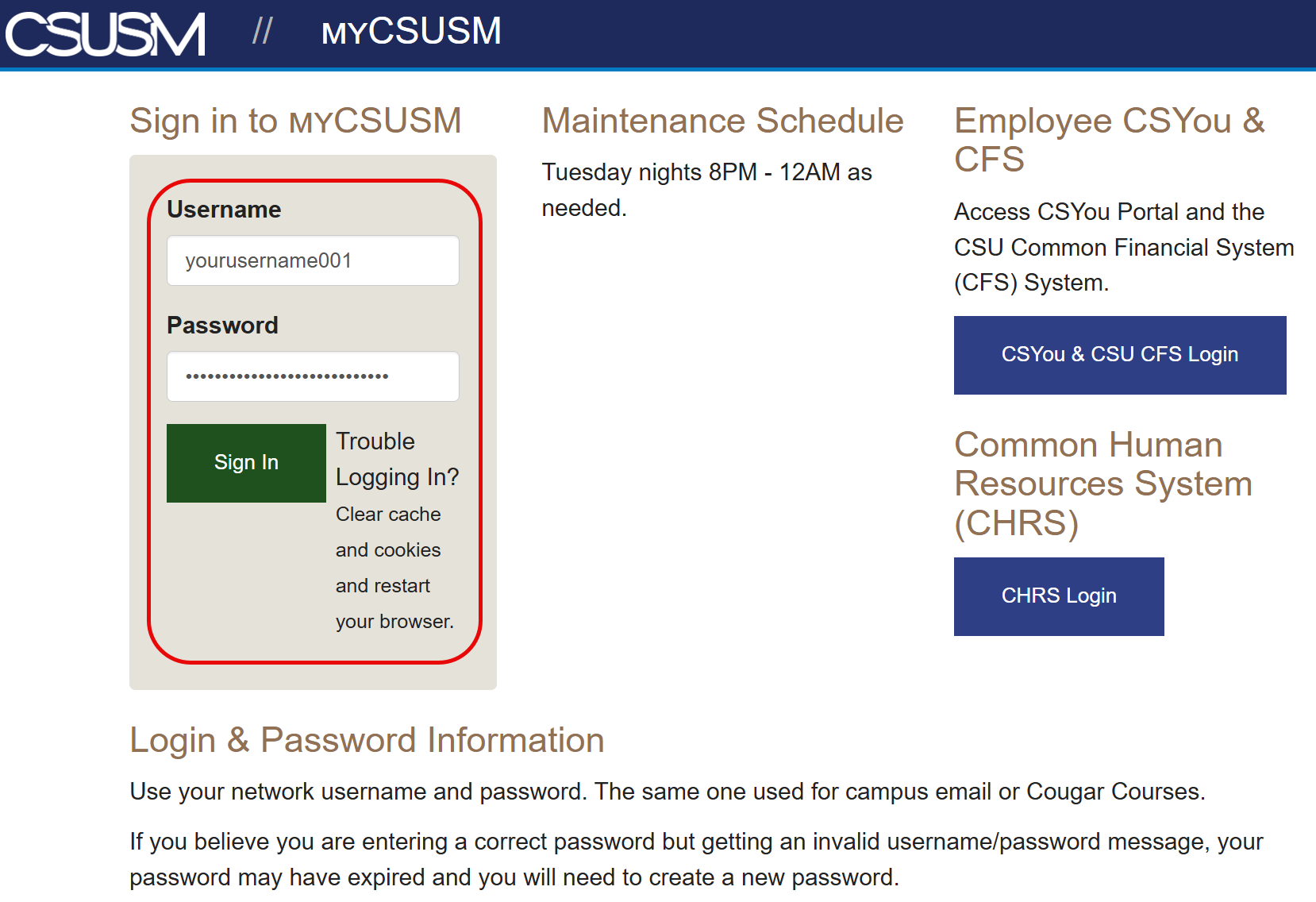
- Select "Student Center" after logging in.
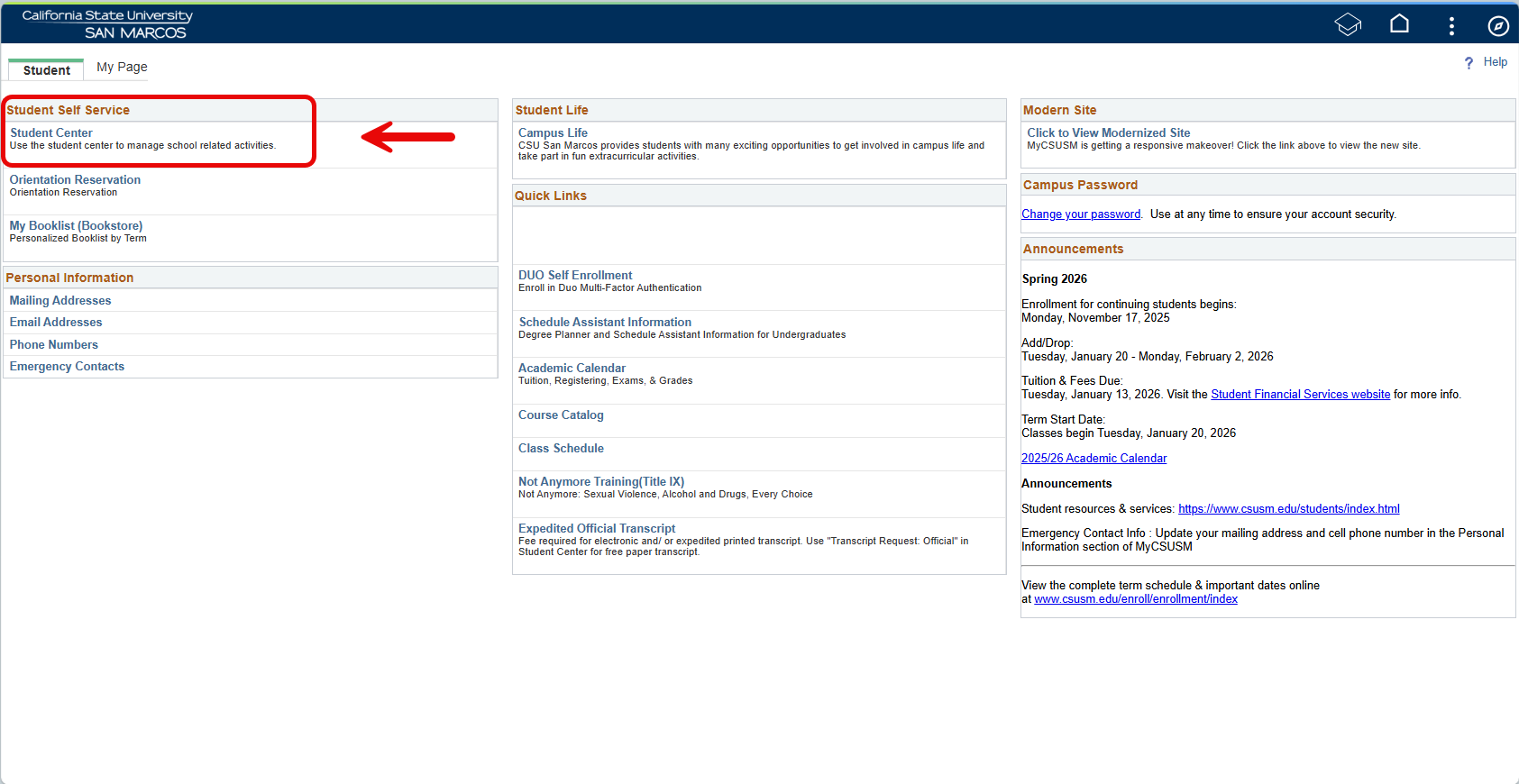
- Review your "To-Do" list, alerts, and notifications carefully.
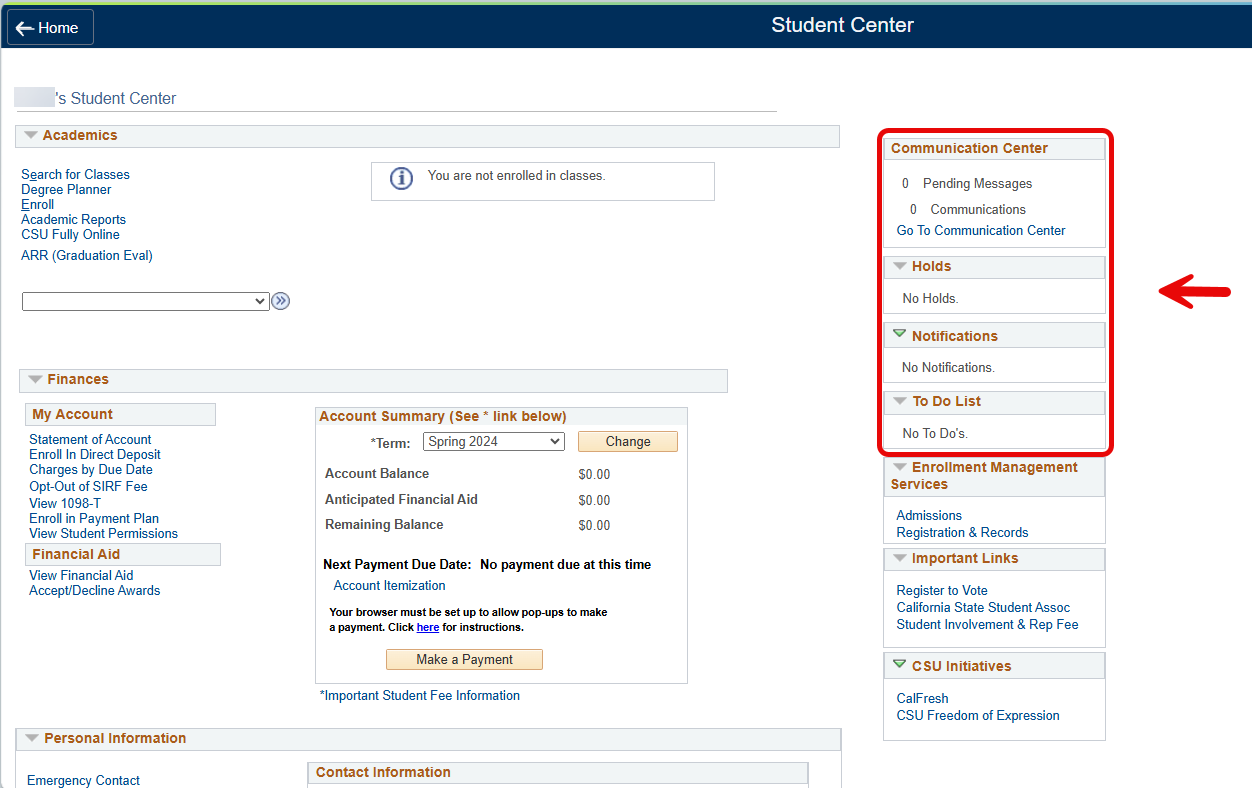
- Complete any outstanding tasks and return often for updates.
You can also review the MyCSUSM help page for portal guidance.
- Step 4: Enroll in DUO Multi-Factor Authentication
All students accessing CSUSM systems and application are required to use DUO Multi-Factor Authentication.
Please follow the instructions below to set up DUO.
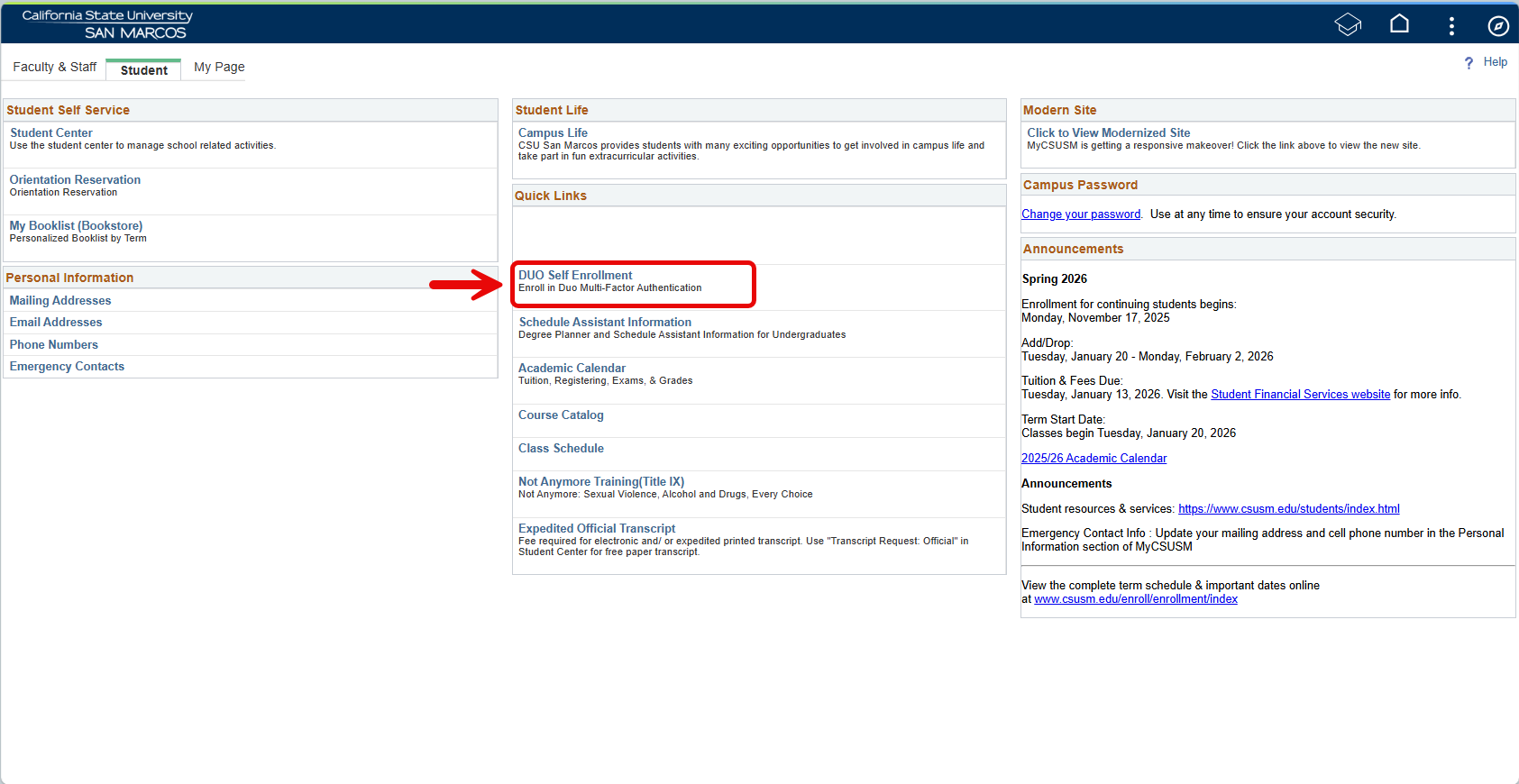
DUO Setup Page- Log into MyCSUSM.
- Go to the
Quick Links
section and click onDUO Self Enrollment
.
- Under "How do you want to enroll in MFA?" select "Register Smartphone with app" in the dropdown menu.
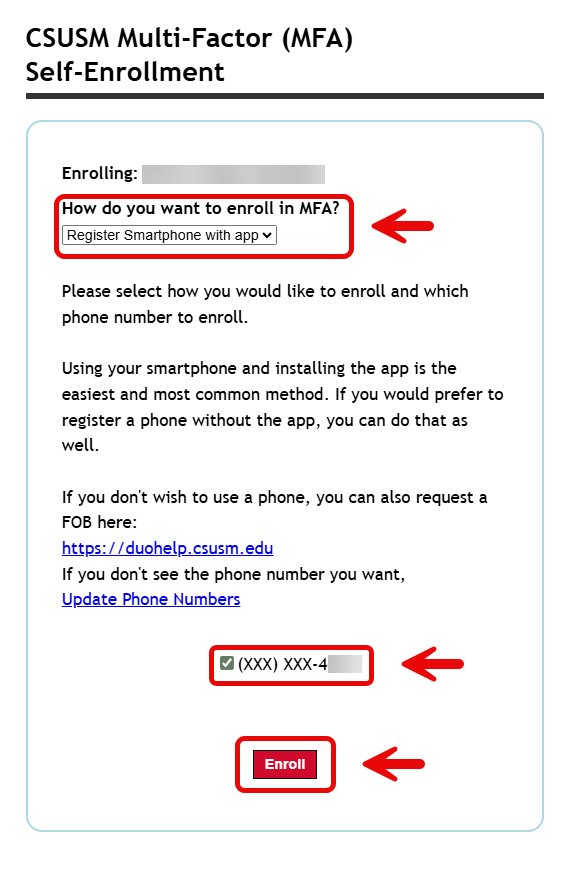
- At the bottom of that screen, select the mobile phone number that you will use for DUO.
- Click "Enroll".
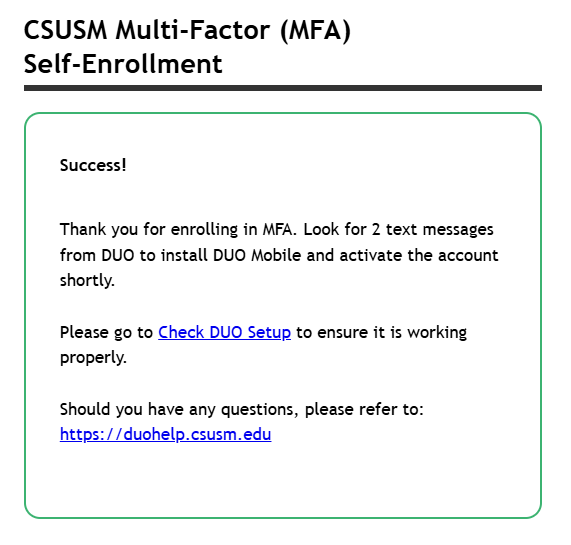
- You will get two text messages, one to install the DUO app and one with a DUO activation
link.
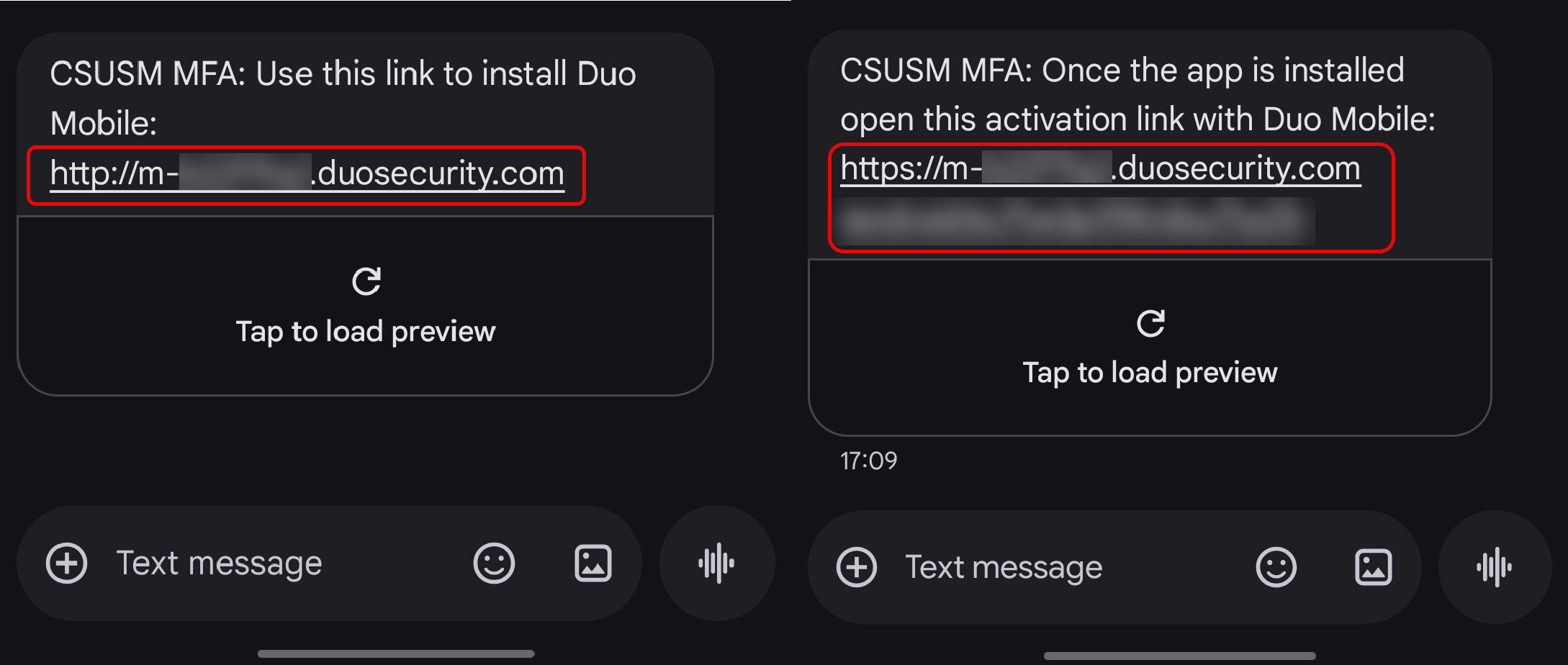
- Please make sure you install the DUO Mobile App before clicking the activiation link.
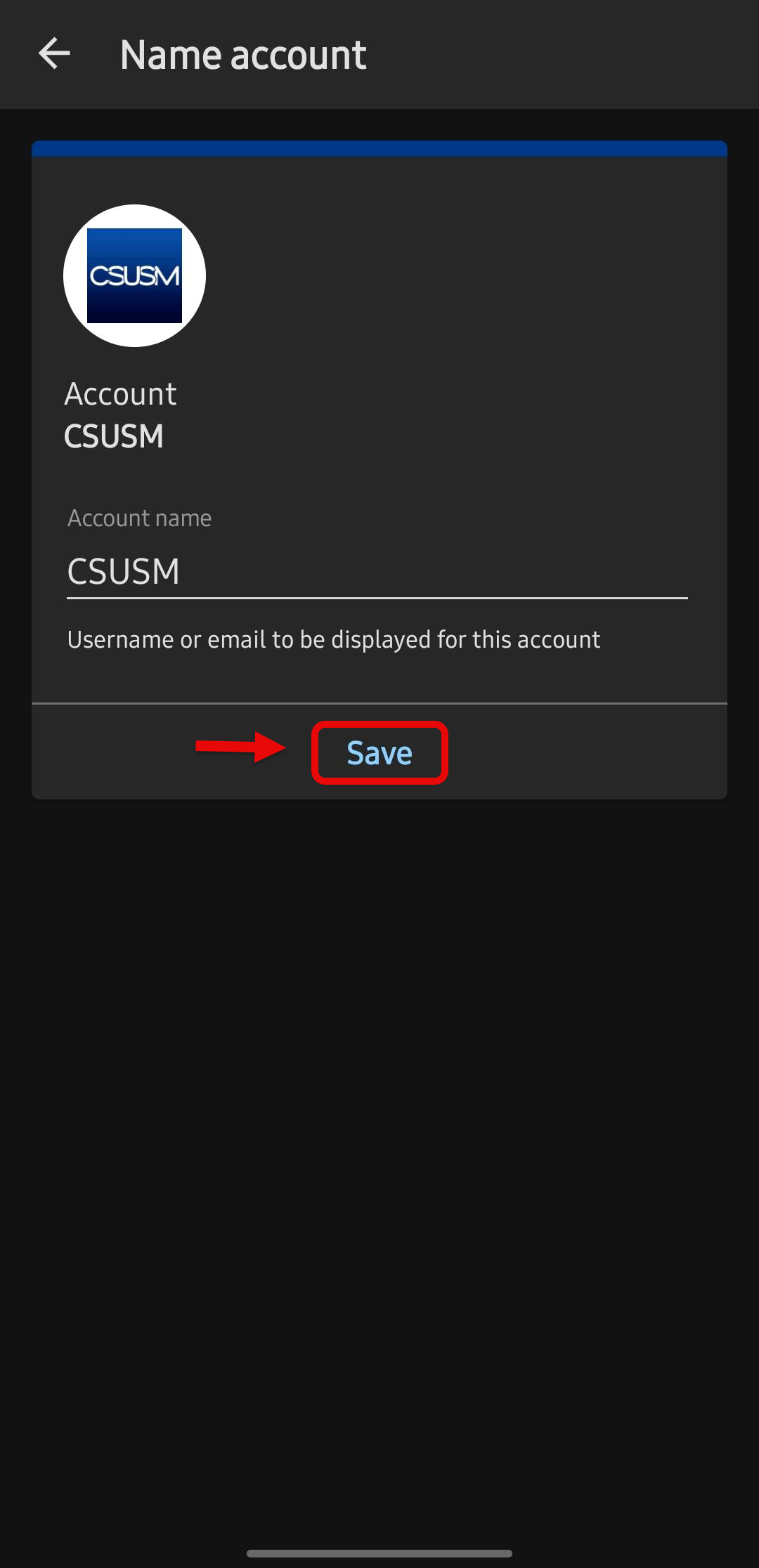
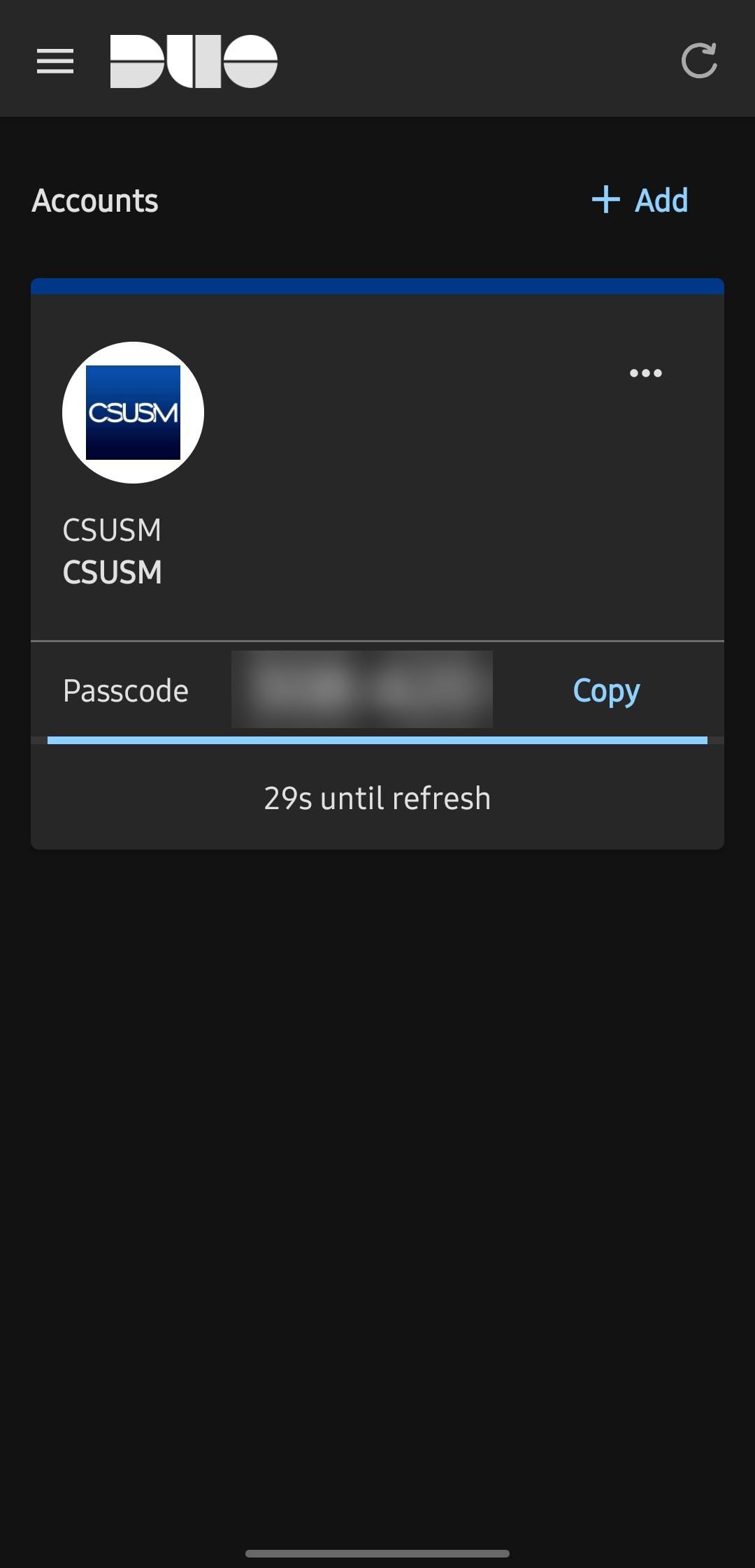
- Once you have the app installed, click on the activation link. And follow the prompts
on the mobile app.
- If you are getting prompted for a bypass code or got a new device, please fill out
the following form for assistance.
I need help with DUO
You can also review the CSUSM DUO Page for more information.
This is what will appear on the page when you sign in.
You will have to input the numbers from the screen into the notification in the DUO Mobile App on yout mobile device.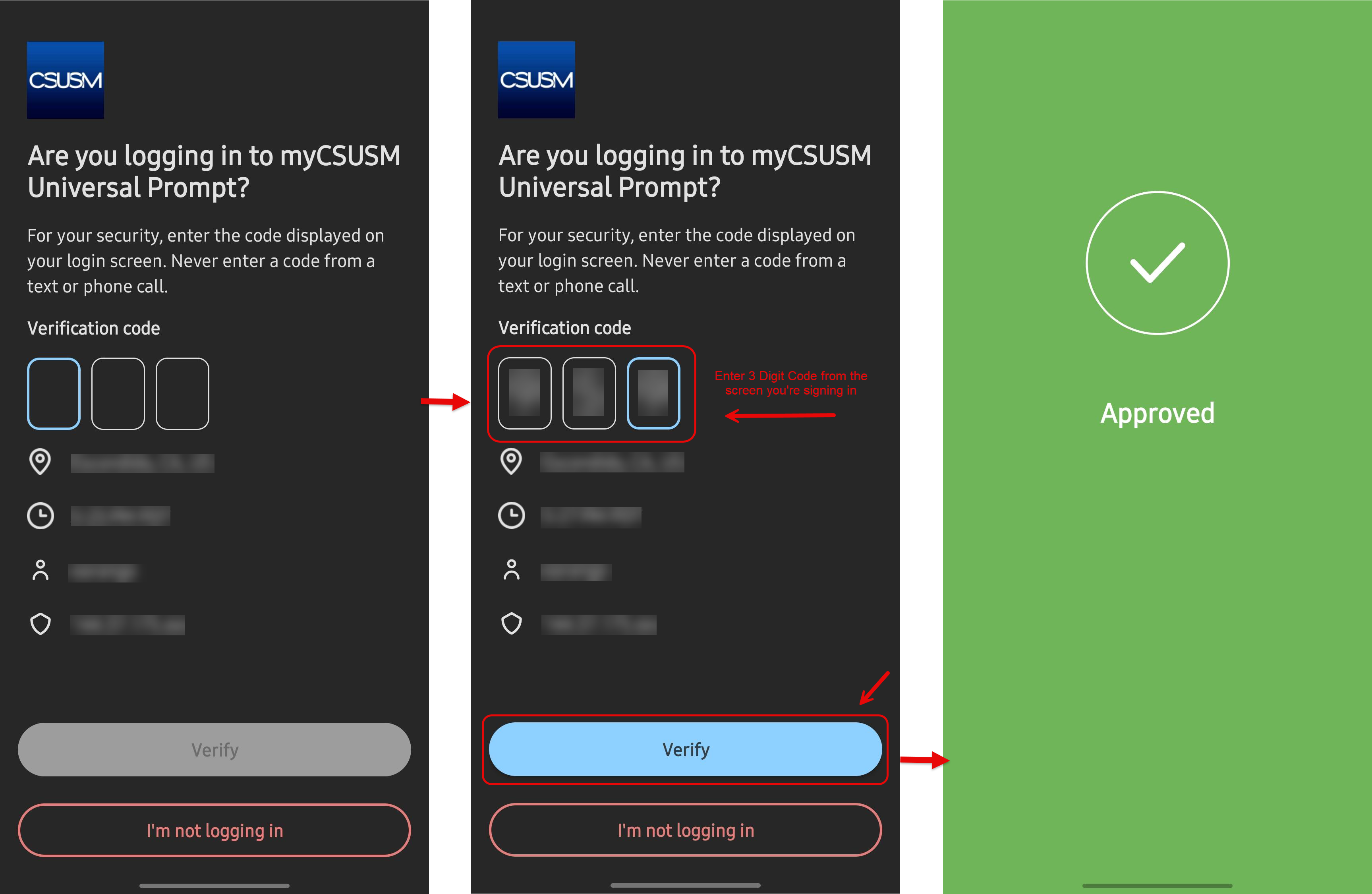
Once you enter the 3 digit code into your mobile app and click "Verify" you will have successfully logged in.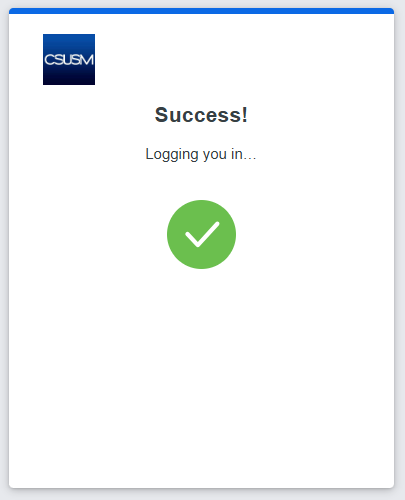
- Step 5: Enroll into Microsoft Self Service Password Reset
Enrollment in Microsoft Self Service Password Reset (SSPR) is required for all students.
SSPR allows you to securely reset or unlock your account without contacting the Helpdesk.
You may be prompted to enroll into SSPR on your first sign into your email or when you first change your password.
Please follow the instruction below carefully.Set up password recovery tools now so you can reset your password later if needed.
Sign into Microsoft Account Security Info with your CSUSM account to see/configure you authentication and recovery options.- On the setup screen, select "Next" to begin.
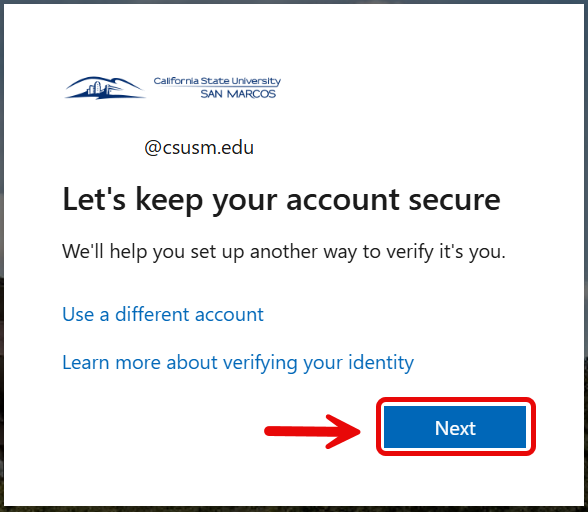
2. If you do not wish to set up Microsoft Authenticator, select: “Set up a different way to sign in”.
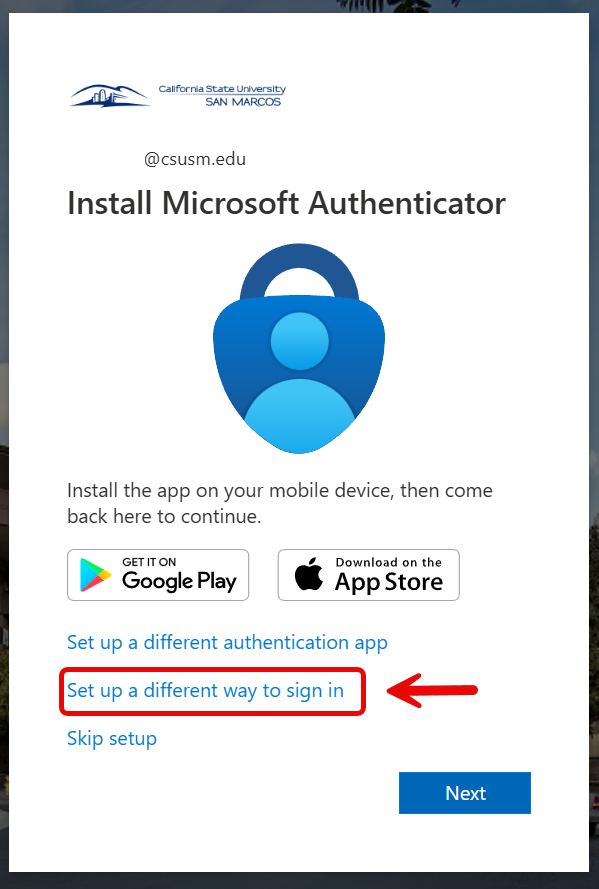
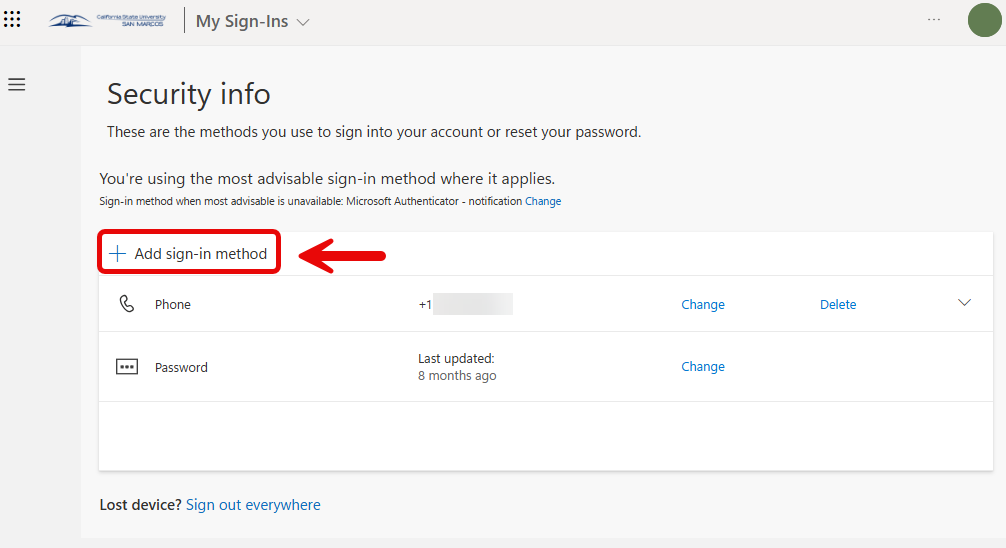
3. We recommend choosing “Email” or "Microsoft Authenticator" as your sign-in method.

The use of Microsoft Authenticator is encouraged but not required. To enroll with Microsoft Authenticator, please make sure you have the Mobile App installed on your mobile device before set-up.
For more detailed instructions on setting up Microsoft Authenticator please visit the following page.
Account Recovery Page
Continue to the next steps if you selected "Email".4. If you selected “Email”, please add your personal email in the following screen and select “Next” and continue with the following instructions on your screen.

5. A code will be sent to the personal email used.

6. Enter the code into the box and select "Next".
7. If successful, you will see "Email Added". Select "Done".
I need help with Microsoft Authenticator/Recovery MethodsSign into Microsoft Account Security Info with your CSUSM account to see/configure you authentication and recovery options.
- Step 6: Access your Outlook Email
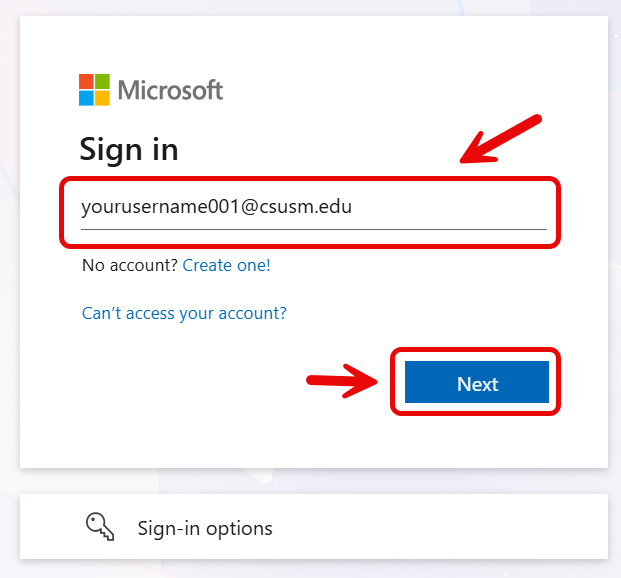
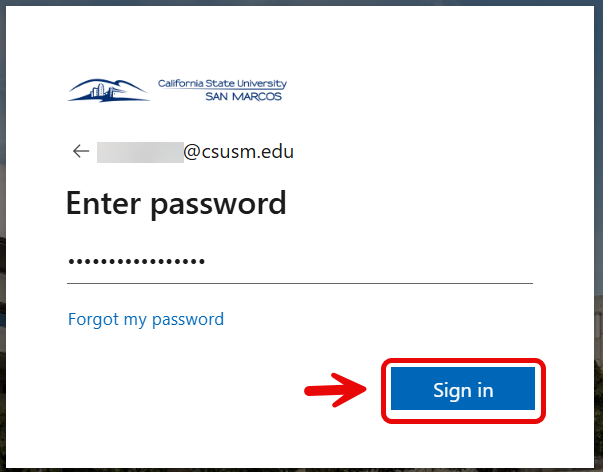
To sign into any CSUSM Microsoft services, you will need use your CSUSM Email and Password.
Your CSUSM email will be the campus username that was provided to you with "@csusm.edu" at the end.
You password is the same password you created to access your student portal.
Your campus email account will be created in April for Fall admits and November for Spring admits, once you have accepted your offer of admissions.
Sign Into Outlook- Sign in using your CSUSM email and password.
- Read your messages and check your inbox regularly.
- Click the following for a short video on how to navigate Outlook.
For more information about your Cougars email, visit the CSUSM Email Page.
- Sign in using your CSUSM email and password.
For further assistance, please contact the Student Technology Helpdesk:
-
- Email: techsupport@csusm.edu
- Telephone: +1(760) 750-4790
- Hours of Operation: 8:00 AM - 5:00 PM, Monday - Friday
- Submit a Ticket Online